
P1-视频学习内容:
1. Rect Transform基础概念
每个物体上必有一个Transform组件,而Rect Transform是它的一个子组件。
2. Anchor的简单应用
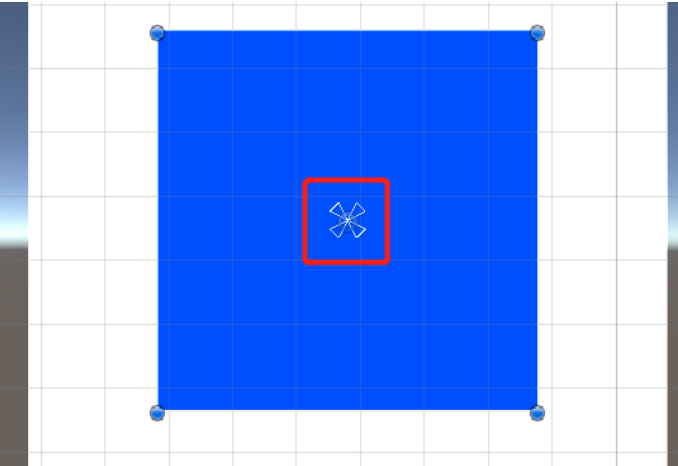
Anchor决定了对齐方式。蓝色的那四个小三角就是4个锚点,此时有个父物体(白色),蓝色的锚点决定了它对于白色的对齐方式。
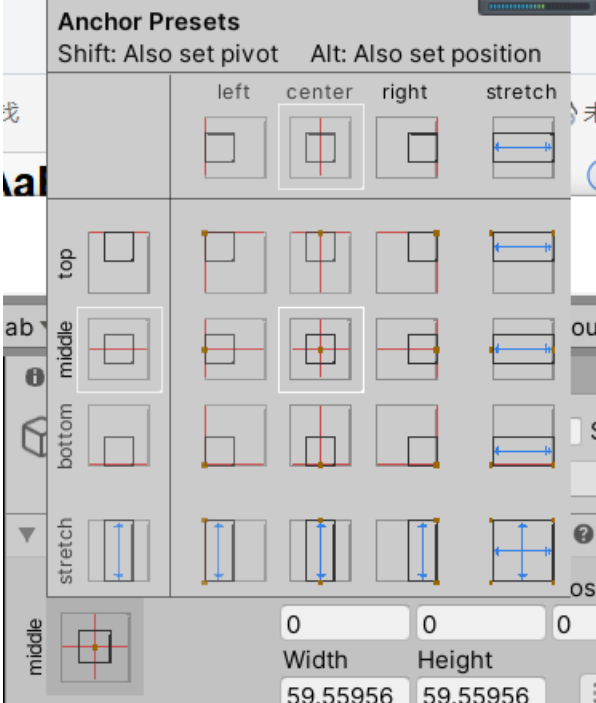
Anchor Presets 可以设置锚点的常见位置。
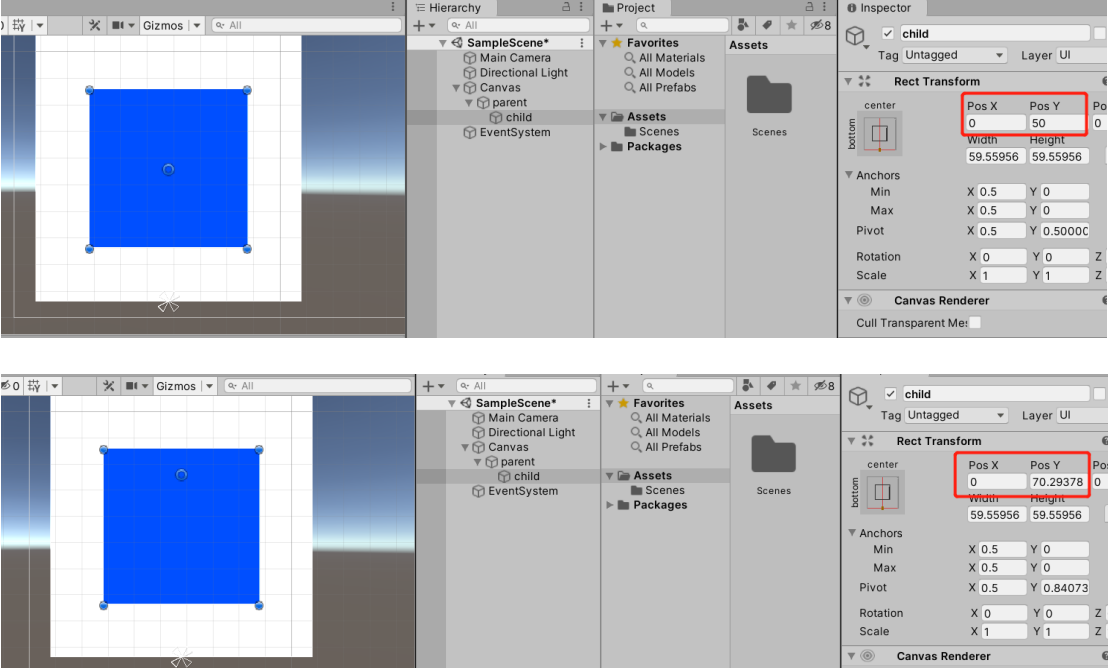
工具栏这里可以改成pivot模式,此时可以修改轴心点位置。

Rect Transform里PosX和PosY表示的是锚点和轴心点(4合1)之间的距离。
实用性:
可以很好处理适配的问题,例如如果需要局左对齐且蓝色的左边要始终和白色的左边重合,此时就可以把锚点和轴心点都设置为自己的左边(可以点shift的同时一起设置),然后将蓝色的PosX和PosY都设置为0。

3. Anchor的适应性设置。
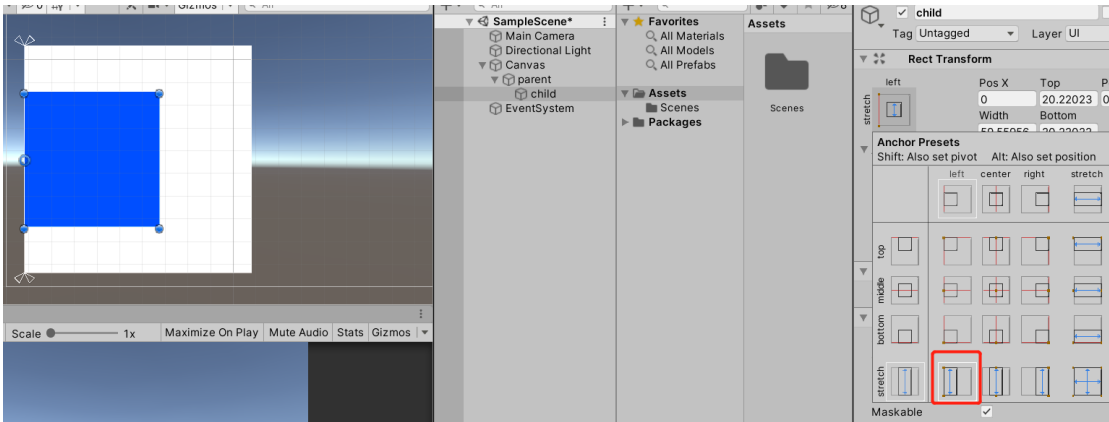
有些适配模式会让锚点分开,此时不再以某个单一的点进行适配,而是变成锚点间形成的一条边或者一个矩形。
矩形适配:
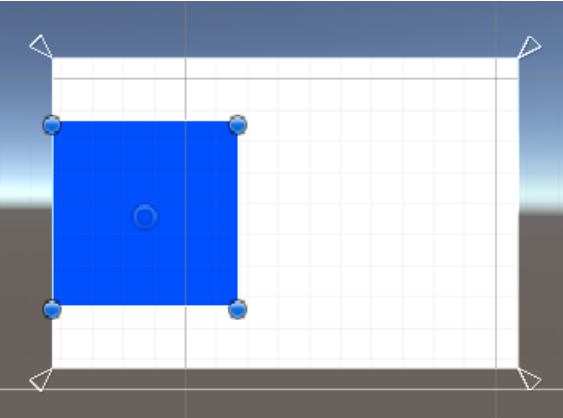
但是要注意适配可能出现的如下问题。我选择了X轴一半的位置进行对齐,若白色缩小得太过,会导致蓝色的超出。
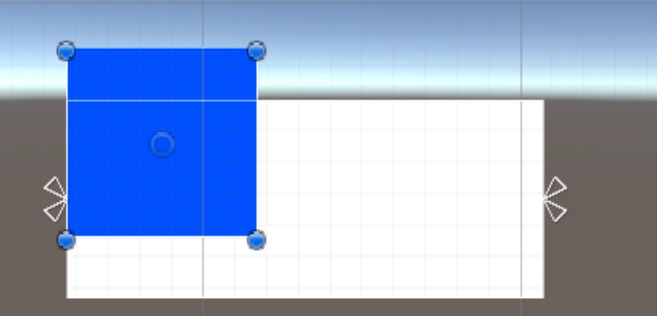
4. Rect Transform的两种位置属性。
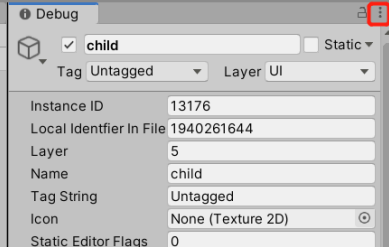
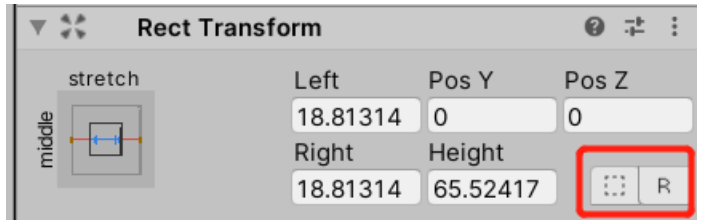
右上角的这个可以切换normal和debug模式。
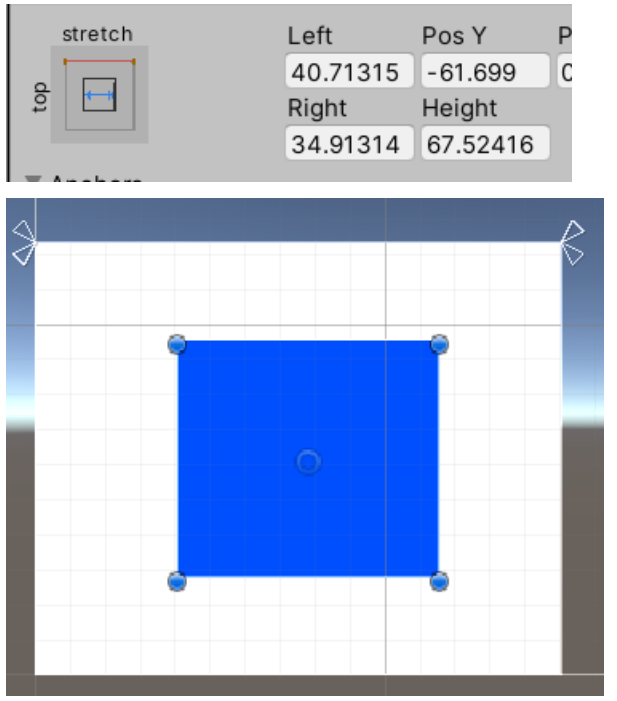
当选择了四周伸展适配后,我们发现原来的PosX、PosY、width、height都变了描述。这里的四个参数会根据4个锚点的组成情况来描述一些位置情况。例如,此时是描述了由4个锚点组成了一个矩形,我们的UI矩形四条边分别和锚点矩形四条边的间距值。
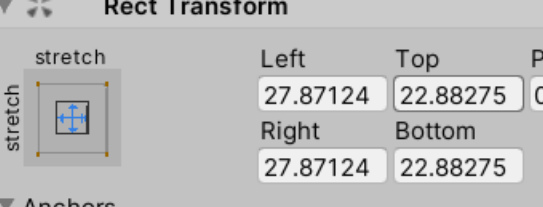
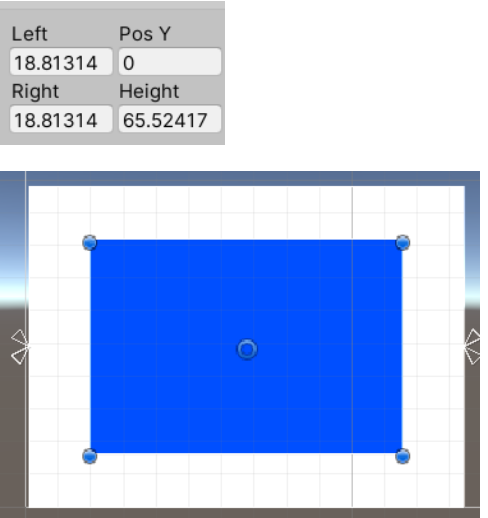
再举个例子,顶部水平伸展适配,锚点在白色上边组成一条水平线段。PosY是指蓝色(子)轴心点距离白色(父)上边线的距离。Left / Right是蓝色矩形左(右)边和白顶部上边线段左(右)端点之间的距离。Height为蓝色矩形的高度(此时的对齐方式不会改变高度,只会改变宽度)。
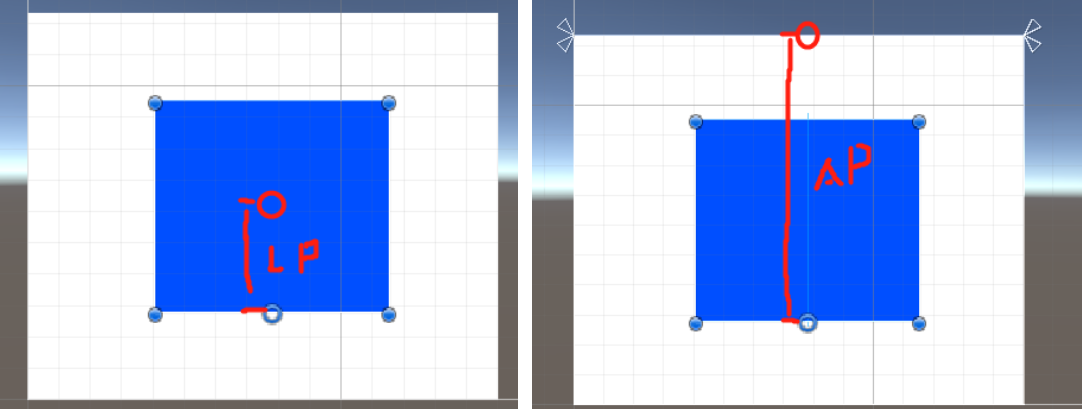
Local Position和Anchor Position
Local Position:蓝色矩形的几何中心点与轴心点的距离。
Anchor Position:蓝色矩形锚点的几何中心点与轴心点的距离。

由此可见如果要设置UI位置关系时,尽量用Anchor Position,能清楚子物体和父物体的对齐关系。
5. 轴心点参数的应用。
可拓展列表:保持某一个蓝色和白色的某一边的边距不变而向另一侧做延申。
eg.把父物体的轴心点移到左边中间位置,然后向右拖动,蓝色不会跟着改变。
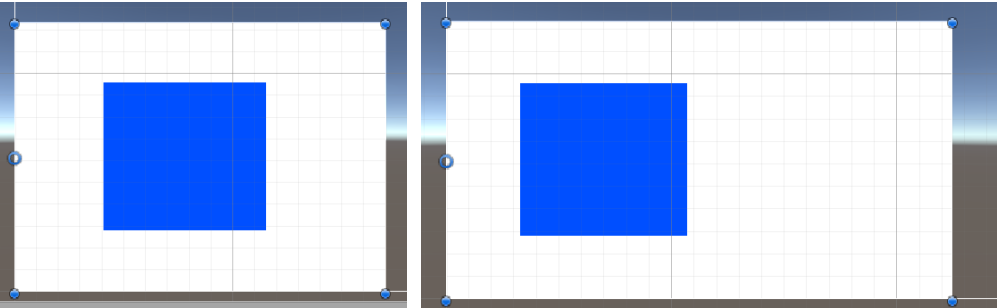
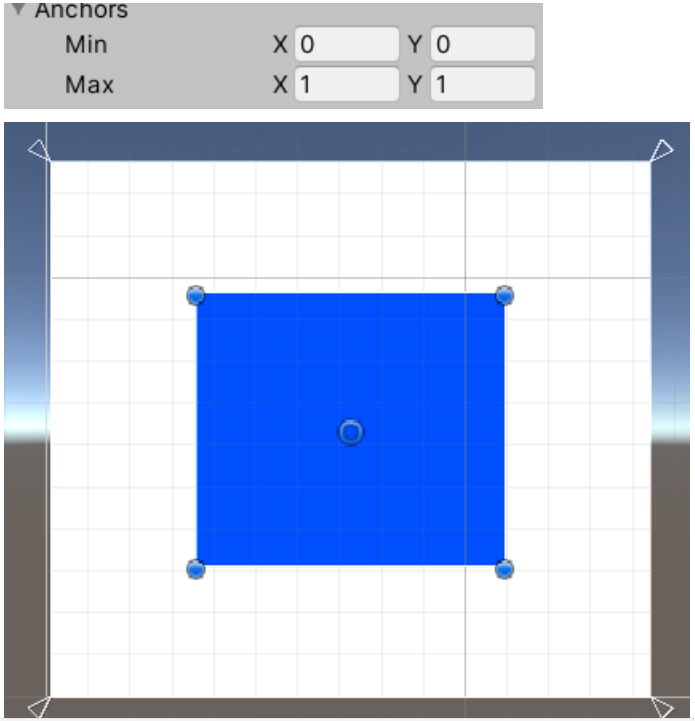
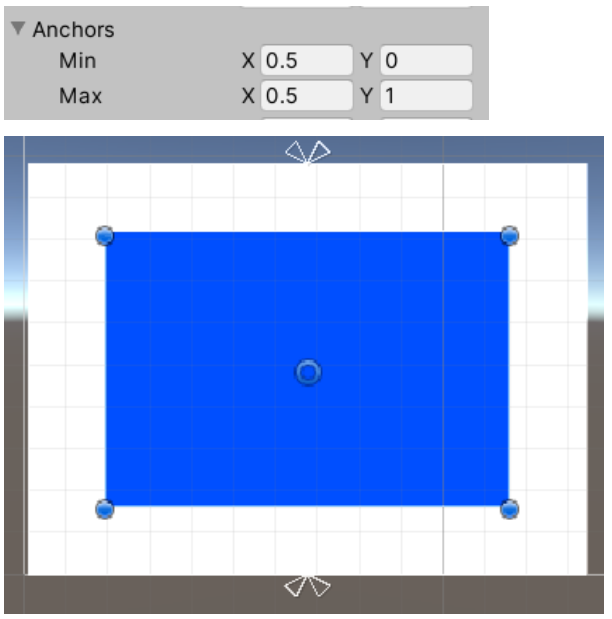
Min和Max是指锚点的坐标,范围为[0,1],是对于父物体矩形边长的一个范围映射。可以理解为4个锚点中X和Y的取值中的最小值和最大值。
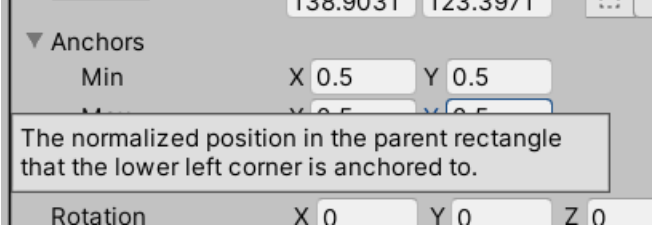
(1)集中在一点,此时最小最大值都是0.5
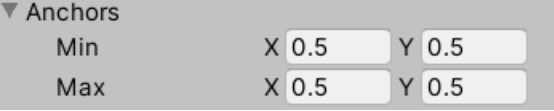
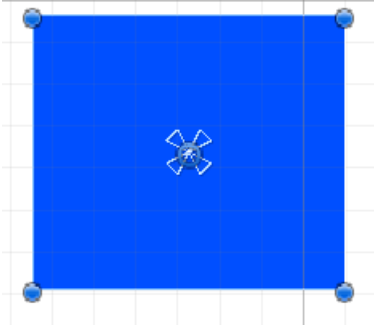
(2)四周适配型,此时最小值为(0,0),最大值为(1,1).
(3)垂直方向伸展,此时2个锚点在顶部中间,2个锚点在底部中间,X的最小和最大值都是0.5,而Y则是最小0,最大1。
6. 获取UI宽高最安全的方式。
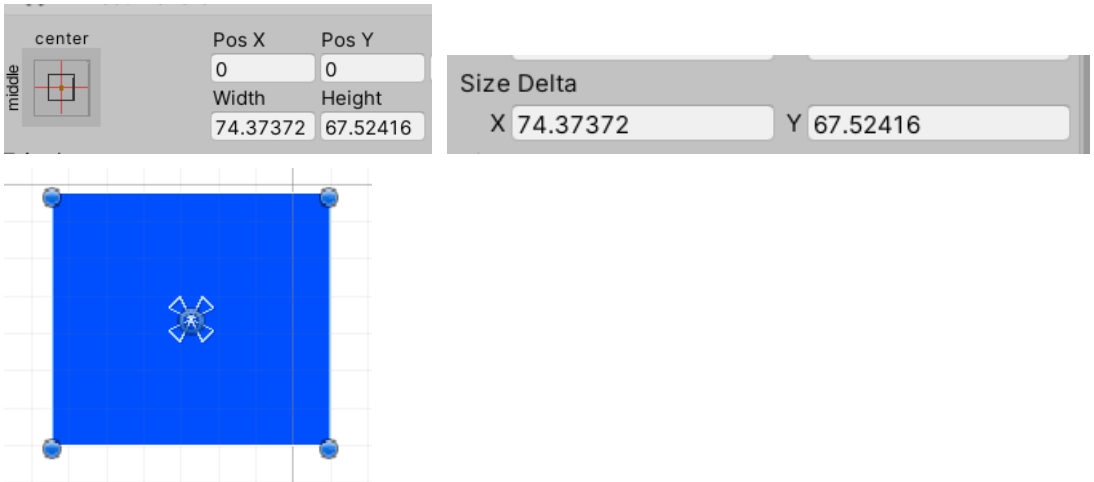
情况一:4个锚点都位于中心位置
此时size delta中的X和Y指代的就是蓝色的宽高。
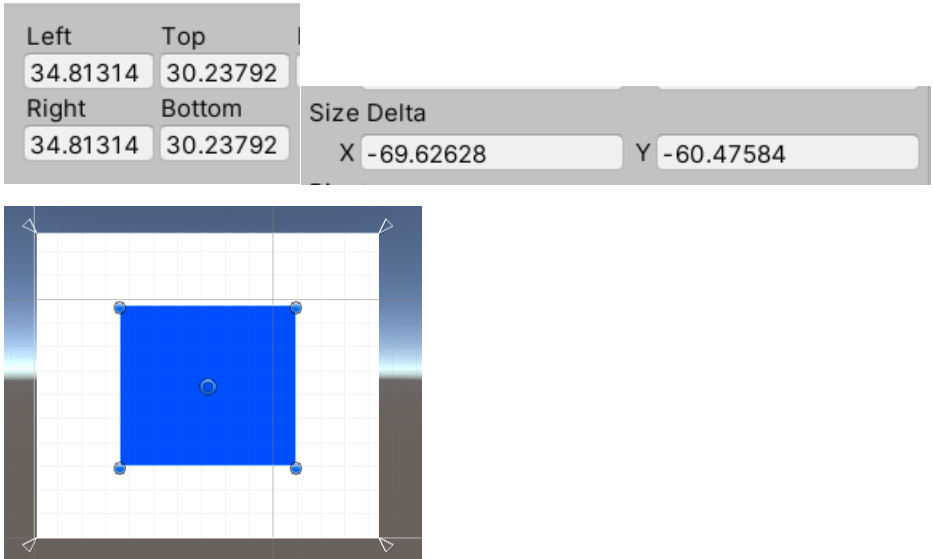
情况二:4个锚点分散在四个角
此时Size Delta的X和Y分别为-(Left+Right)和-(Top+Bottom)
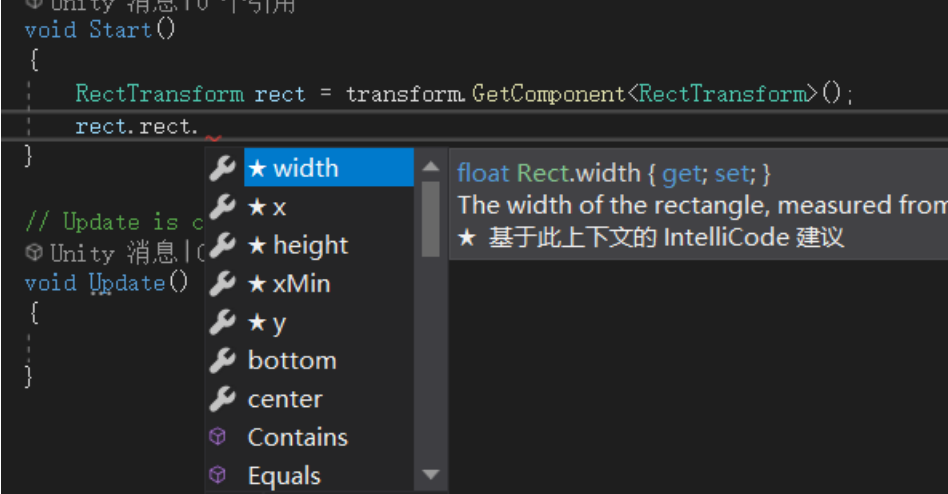
所以想要安全获取宽高的话需要用脚本去实现,此时不用考虑适配的设置带来的影响:
即获取Rect Transform组件,然后通过它来调用rect的width或height属性。
稍微总结下Rect Transform的4个参数的意义:
·当4个锚点在一起时,它就是看作一个点,这样Pos X和Pos Y就是锚点和轴心点两点间距离的X和Y值,width和height自然就是子物体自身矩形的宽高。
·当4个锚点不在一起时,上下左右就代表以4个锚点形成的矩形和子物体自身矩形各边的边距。
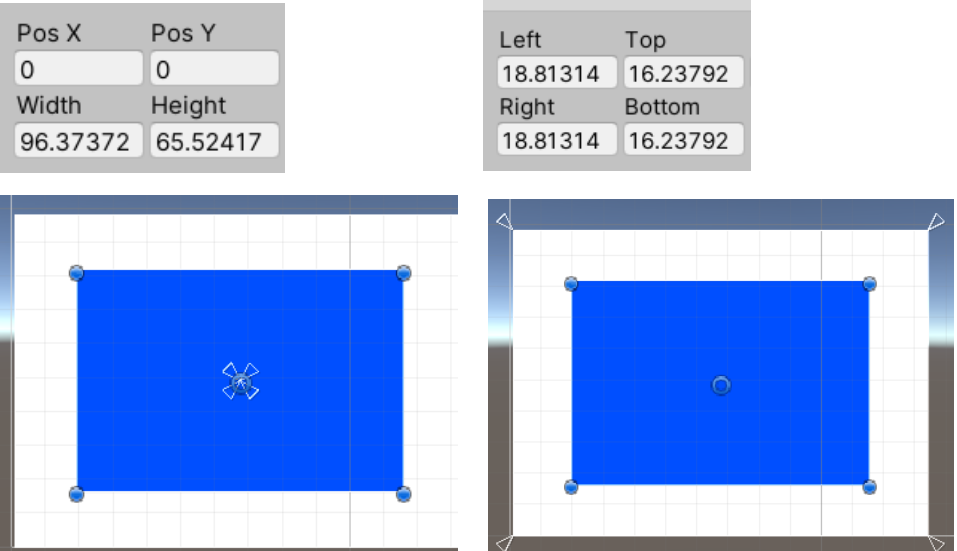
·当4个锚点是形成一条线段时,如下图所示,Pos属性表示轴心点和线段的距离,这条线上的Y和轴心点一样,所以Pos Y为0。宽高就是指子物体自身矩形的宽高;而left和right分别代表线段左右端点与子物体自身矩形左边和右边的距离。
7. 蓝图模式和原始编辑模式。
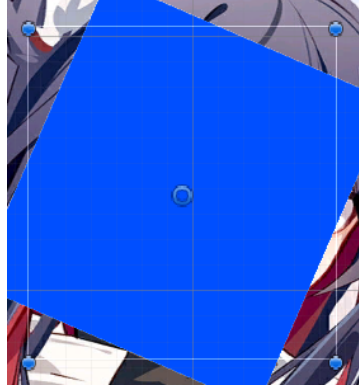
蓝图模式作用于旋转和缩放属性,原始编辑模式作用于锚点和轴心点。
蓝图模式能够实现UI改变时而响应区域(四个蓝色的点)不改变的情况。
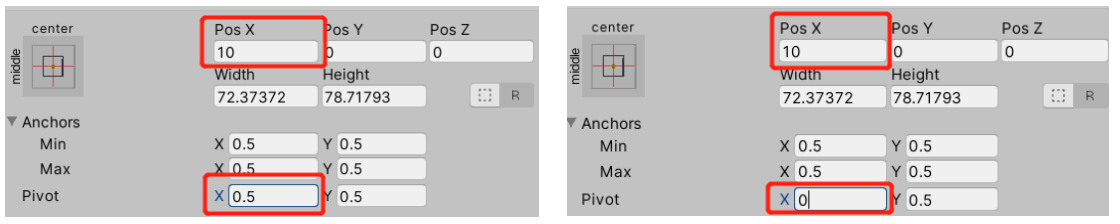
原始编辑模式是改变锚点和轴心点时,矩形的位置参数不变。
P2-Unity手册翻译阅读:
Basic Layout
基础布局
In this section we'll look at how you can position UI elements relative to the Canvas and each other. If you want to test yourself while reading, you can create an Image using the menu GameObject -> UI -> Image.
这个部分你将看到UI元素如何关于的画布和其它UI元素的放置情况。可以自己创建一个Image来看效果。
The Rect Tool
Rect 工具
Every UI element is represented as a rectangle for layout purposes. This rectangle can be manipulated in the Scene View using the Rect Tool in the toolbar. The Rect Tool is used both for Unity's 2D features and for UI, and in fact can be used even for 3D objects as well.
出于布局的目的,每个UI元素都被当作一个矩形。可以使用工具栏的Rect工具来对场景视图下的矩形进行操作。Rect工具能用来控制2D UI和3D物体。

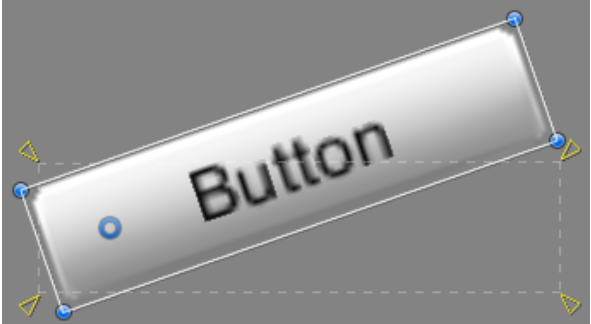
The Rect Tool can be used to move, resize and rotate UI elements. Once you have selected a UI element, you can move it by clicking anywhere inside the rectangle and dragging. You can resize it by clicking on the edges or corners and dragging. The element can be rotated by hovering the cursor slightly away from the corners until the mouse cursor looks like a rotation symbol. You can then click and drag in either direction to rotate.
Rect工具可以对UI元素进行移动、更改尺寸以及旋转。选中一个UI元素后,可以点击它内部的任意位置来拖动它来进行移动。而当你点击它的边或角后拖动,则会更改它的尺寸。将光标轻轻移到稍微远离角的地方,直到光标变成一个旋转标识,就可以旋转UI了……
Just like the other tools, the Rect Tool uses the current pivot mode and space, set in the toolbar. When working with UI it's usually a good idea to keep those set to Pivot and Local.
Rect工具采用了常见的当前轴心点模式和空间,该选项放置在工具栏中。推荐使用轴心点模式和本地坐标空间。(另外两个分别是中心点模式和世界坐标空间)。

The Rect Transform is a new transform component that is used for all UI elements instead of the regular Transform component.
Rect Transform代替了常规的Transform组件成为了新的用于所有UI元素的transform组件。
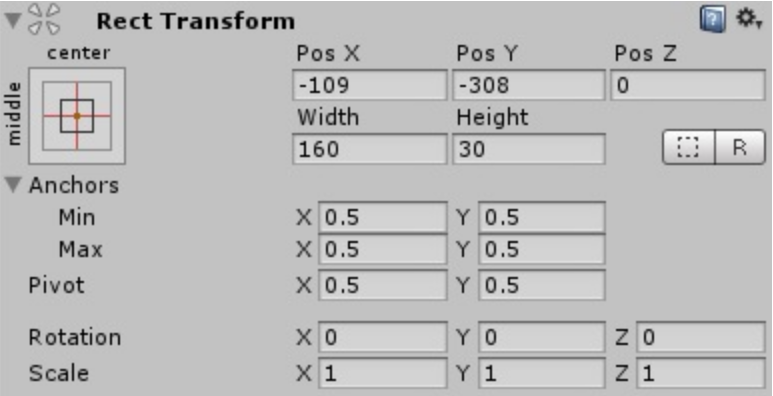
Rect Transforms have position, rotation, and scale just like regular Transforms, but it also has a width and height, used to specify the dimensions of the rectangle.
Rect Transforms保留了位置、旋转以及缩放的属性。但是它却新增了宽度和高度,这俩用来指定矩形的尺寸。
Resizing Versus Scaling
改尺寸 VS 缩放
When the Rect Tool is used to change the size of an object, normally for Sprites in the 2D system and for 3D objects it will change the local scale of the object. However, when it's used on an object with a Rect Transform on it, it will instead change the width and the height, keeping the local scale unchanged. This resizing will not affect font sizes, border on sliced images, and so on.
如果要用Rect工具改变物体的尺寸,对于2D系统的sprite和3D物体,通常情况下会改变物体的本地尺寸。然而,当它物体挂载Rect Transform组件时,就会改变它的宽高,并保持本地尺寸不变。这样的改变不会影响到字体大小、切片图像的边界等等。
Pivot
轴心点
Rotations, size, and scale modifications occur around the pivot so the position of the pivot affects the outcome of a rotation, resizing, or scaling. When the toolbar Pivot button is set to Pivot mode, the pivot of a Rect Transform can be moved in the Scene View.
旋转、尺寸以及缩放的修改都围绕着轴心点进行,因此轴心点的位置会影响到旋转、改尺寸或者缩放的结果。当工具栏的Pivot按钮设置为Pivot模式时,就可以在场景视图中改变Rect Transform的轴心点。
Anchors
锚点
Rect Transforms include a layout concept called anchors. Anchors are shown as four small triangular handles in the Scene View and anchor information is also shown in the Inspector.
Rect Transforms包含了一个名为锚点的布局概念。锚点在场景视图中以4个小三角形把手的形式呈现,同时锚点信息也在监视面板中显示。
If the parent of a Rect Transform is also a Rect Transform, the child Rect Transform can be anchored to the parent Rect Transform in various ways. For example, the child can be anchored to the center of the parent, or to one of the corners.
如果一个Rect Transform的父物体也是一个Rect Transform,那么子物体的Rect Transform就有好几个基准父物体Rect Transform的方式。例如,基准位置可以是父物体的中心,也可以是某一个角。
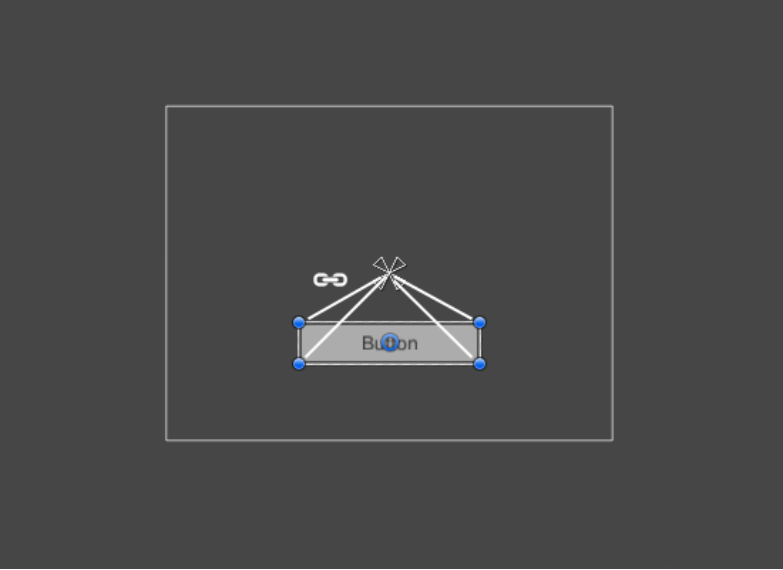
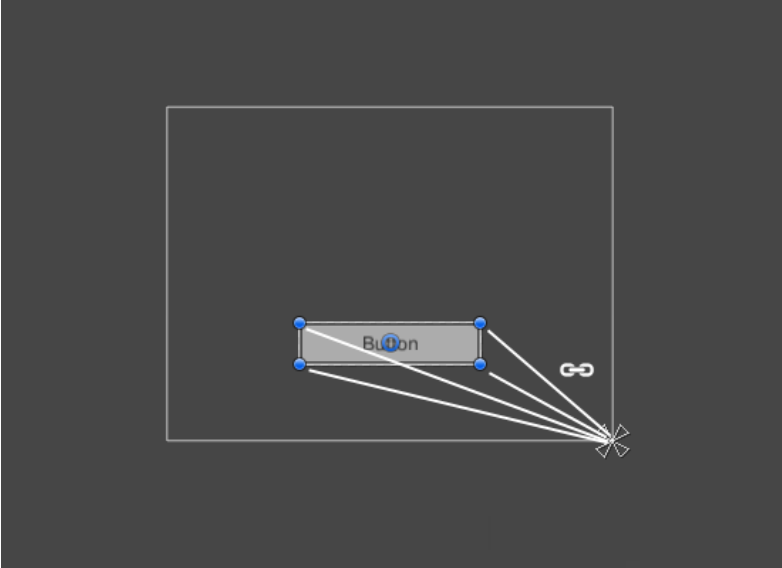
The anchoring also allows the child to stretch together with the width or height of the parent. Each corner of the rectangle has a fixed offset to its corresponding anchor, i.e. the top left corner of the rectangle has a fixed offset to the top left anchor, etc. This way the different corners of the rectangle can be anchored to different points in the parent rectangle.
锚点基准允许子物体随着父物体的宽高进行拉伸。每个矩形的角都有一个对应锚点的固定偏移量,也就是说,矩形的左上角有一个对于左上锚点的固定偏移量等。这种方式下矩形的不同角可以基准于父物体矩形的不同点。
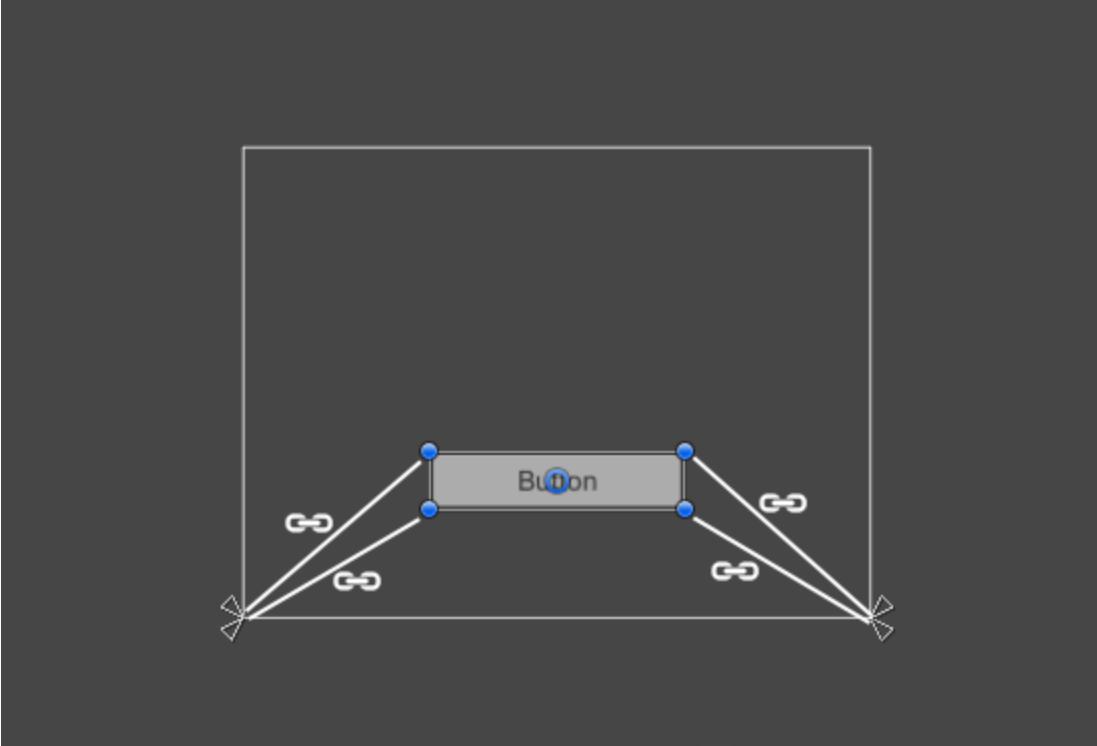
The positions of the anchors are defined in fractions (or percentages) of the parent rectangle width and height. 0.0 (0%) corresponds to the left or bottom side, 0.5 (50%) to the middle, and 1.0 (100%) to the right or top side. But anchors are not limited to the sides and middle; they can be anchored to any point within the parent rectangle.
锚点位置是用父物体矩形宽高的小数(或百分比)来定义的。0.0 (0%) 对应了左边或底边,0.5 (50%) 对应了中间,而1.0 (100%)对应了右边或者顶边。但是锚点不会受限于边和中心;它们可以基准到父物体矩形中的任意一点。
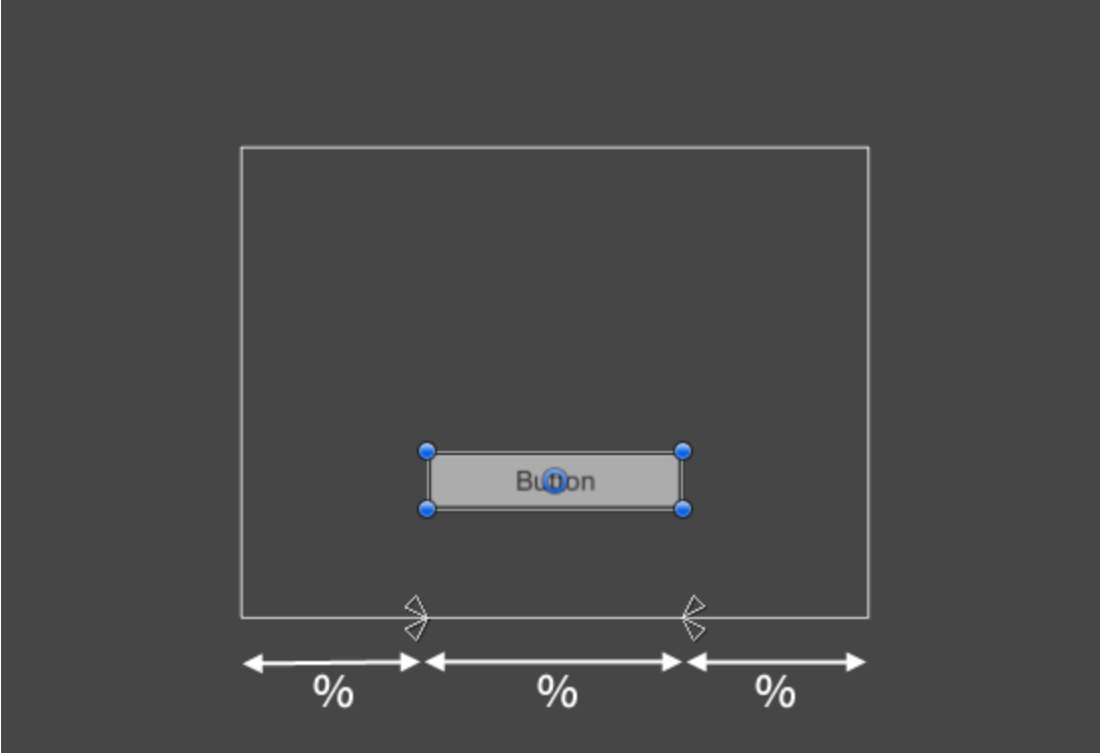
You can drag each of the anchors individually, or if they are together, you can drag them together by clicking in the middle in between them and dragging. If you hold down Shift key while dragging an anchor, the corresponding corner of the rectangle will move together with the anchor.
你可以单独拖拽每个锚点,或者当它们是一个整体时,可以点击它们的中心然后一起拖拽。如果拖拽锚点的同时还按住Shift,那么矩形对应的角也会随着锚点一起移动。
A useful feature of the anchor handles is that they automatically snap to the anchors of sibling rectangles to allow for precise positioning.
锚点把手一个实用的特征就是它们可以自动断开兄弟矩形(同一个层级)的锚点,从而允许精确的定位。
Anchor presets
锚点预置(对齐设置)
In the Inspector, the Anchor Preset button can be found in the upper left corner of the Rect Transform component. Clicking the button brings up the Anchor Presets dropdown. From here you can quickly select from some of the most common anchoring options. You can anchor the UI element to the sides or middle of the parent, or stretch together with the parent size. The horizontal and vertical anchoring is independent.
在监视面板中,锚点预置按钮位于Rect Transform组件的左上角。点击按钮后会出现下拉列表。你可以在这里快速选择一些常用的锚点基准选项。可以是基准父物体的边或者中心,或者让它随着父物体的尺寸一同拉伸。水平和垂直的基准是独立的。
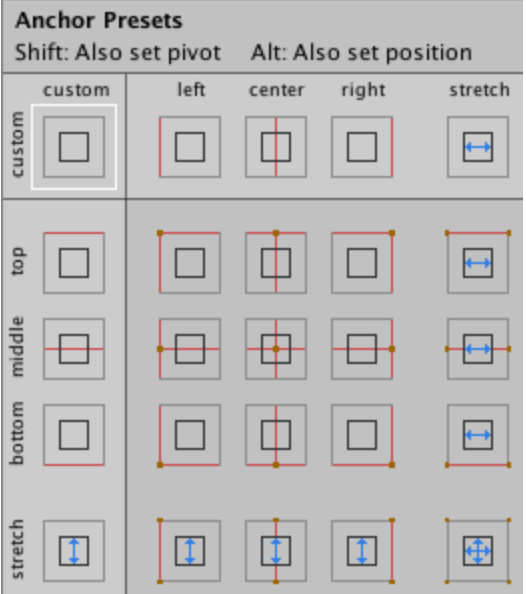
The Anchor Presets buttons displays the currently selected preset option if there is one. If the anchors on either the horizontal or vertical axis are set to different positions than any of the presets, the custom options is shown.
如果你当前选择了某个预置选项,那么锚点预置按钮就会显示它。如果水平或垂直轴的锚点位置与预置里所有选项都不一样,那么就会显示一个自定义的选项。
Anchor and position fields in the Inspector
监视面板中的锚点和位置区域。
You can click the Anchors expansion arrow to reveal the anchor number fields if they are not already visible. Anchor Min corresponds to the lower left anchor handle in the Scene View, and Anchor Max corresponds to the upper right handle.
如果锚点数量区域是可见的,那么点击锚点拓展箭头(Anchor标题左边的箭头)就可以显示出它们来。Anchor Min对应了场景视图下的左下锚点把手,而Anchor Max则对应了右上锚点把手。
The position fields of rectangle are shown differently depending on whether the anchors are together (which produces a fixed width and height) or separated (which causes the rectangle to stretch together with the parent rectangle).
矩形的位置区域的显示形式取决于锚点是否是一体的(会产生一个固定的宽高)还是分离的(使得矩形随着父物体矩形进行拉伸)。
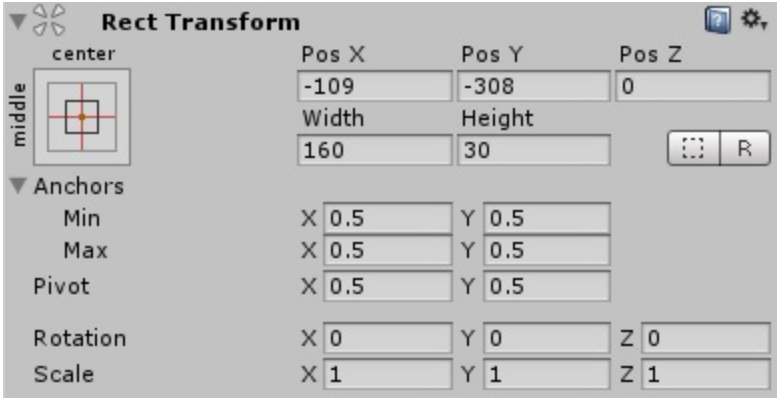
When all the anchor handles are together the fields displayed are Pos X, Pos Y, Width and Height. The Pos X and Pos Y values indicate the position of the pivot relative to the anchors.
所有的锚点是一体的时候,位置区域会显示为Pos X, Pos Y, Width和Height。Pos X和Pos Y的值指示的是轴心点与锚点间的距离坐标值。
When the anchors are separated the fields can change partially or completely to Left, Right, Top and Bottom. These fields define the padding inside the rectangle defined by the anchors. The Left and Right fields are used if the anchors are separated horizontally and the Top and Bottom fields are used if they are separated vertically.
当锚点是分离的时候,位置区域会部分或者全部变成Left, Right, Top和Bottom。这些值定义了由锚点组成的矩形区域和UI自身矩形之间的边距。当锚点在水平方向分离时(形成水平的一条线段,有左端点和右端点),会显示为Left和Right;而锚点在垂直方向分离时(形成垂直的一条线段,有顶端点和底端点),会显示为Top和Bottom。
Note that changing the values in the anchor or pivot fields will normally counter-adjust the positioning values in order to make the rectangle stay in place. In cases where this is not desired, enable Raw edit mode by clicking the R button in the Inspector. This causes the anchor and pivot value to be able to be changed without any other values changing as a result. This will likely cause the rectangle to be visually moved or resized, since its position and size is dependent on the anchor and pivot values.
注意,锚点或轴心点参数的改变通常会反过来去调整矩形的位置数值,目的是为了保证矩形在原来的位置不变。如果你不想这样,可以点击监视面板的R按钮来启用原始编辑模式。在这种模式下,锚点和轴心点的改变是不会产生其它属性值的更改。其效果看起来像是对矩形进行了移动或是尺寸的更改,其原因是由于位置和大小取决于锚点和轴心点的值。
Rect Transform
The Rect Transform component is the 2D layout counterpart of the Transform component. Where Transform represents a single point, Rect Transform represent a rectangle that a UI element can be placed inside. If the parent of a Rect Transform is also a Rect Transform, the child Rect Transform can also specify how it should be positioned and sized relative to the parent rectangle.
在2D布局中,Rect Transform组件类似于Transform组件。其中Transform代表了一个单一的点,而Rect Transform代表了可以在其内部放置UI元素的矩形。如果父物体也是个Rect Transform,那么就能够定义子物体Rect Transform如何相对于父物体矩形进行位置和大小的更改。
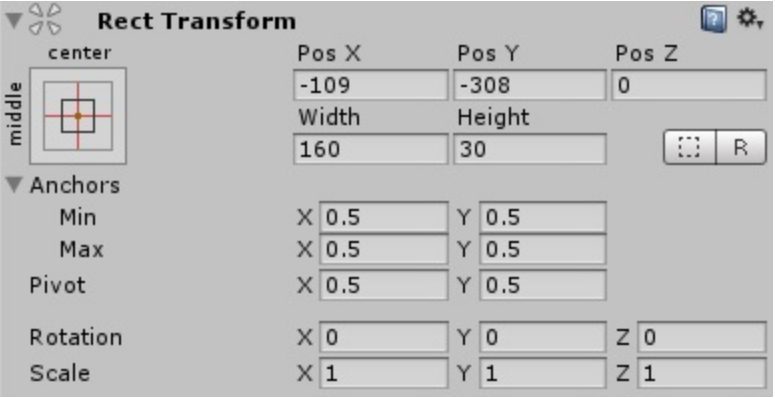
Properties
Pos (X, Y, Z)
Position of the rectangle's pivot point relative to the anchors. The pivot point is the location around which the rectangle rotates.
矩形轴心点相对于一个整体锚点的距离坐标值。轴心点是矩形旋转时的参考中心点。
Width/Height
Width and height of the rectangle.
矩形的宽高。
Left, Top, Right, Bottom
Positions of the rectangle's edges relative to their anchors. This can be thought of as padding inside the rectangle defined by the anchors. Shown in place of Pos and Width/Height when the anchors are separated (see below). To access these options click the square Anchor Presets box at the top left of the RectTransform component.
矩形边相对于各个锚点间的距离坐标值。可以理解为是由锚点形成的矩形区域(也可能是一条线段)与UI自身矩形之间的边距。当锚点是分离的时候,这些参数将会代替上图中显示的Pos和Width/Heigt。点击Rect Transform组件左上角的锚点预置箭头就可以查看修改这些选项。
Anchors
The anchor points for the lower left corner and the upper right corner of the rectangle.
矩形四个角的基准点。
Min
The anchor point for the lower left corner of the rectangle defined as a fraction of the size of the parent rectangle. 0,0 corresponds to anchoring to the lower left corner of the parent, while 1,1 corresponds to anchoring to the upper right corner of the parent.
矩形左下角的锚点的值(实际上就是锚点X和Y的最小取值),由父物体矩形大小的小数形式定义。0,0代表基准点在父物体的左下角,1,1代表基准点在父物体的右上角。
Max
The anchor point for the upper right corner of the rectangle defined as a fraction of the size of the parent rectangle. 0,0 corresponds to anchoring to the lower left corner of the parent, while 1,1 corresponds to anchoring to the upper right corner of the parent.
矩形右上角的锚点的值(实际上就是锚点X和Y的最大取值)……
Pivot
Location of the pivot point around which the rectangle rotates, defined as a fraction of the size of the rectangle itself. 0,0 corresponds to the lower left corner while 1,1 corresponds to the upper right corner.
矩形旋转时参考的中心点位置,由其自身矩形大小的小数形式定义。0,0代表它位于矩形的左下角,1,1代表它位于矩形的右上角。
Rotation
Angle of rotation (in degrees) of the object around its pivot point along the X, Y and Z axis.
Scale
Scale factor applied to the object in the X, Y and Z dimensions.
Blueprint Mode
Edit RectTransforms as if they were not rotated and scaled. This enabled snapping too.
如果不想让Rect Transform(蓝色的四个点)发生旋转或缩放,就可以启用它。
Raw Edit Mode
When enabled, editing pivot and anchor values will not counter adjust the position and size of the rectangle in order to make it stay in one place.
开启后,在编辑轴心点和锚点值的时候就不会反过来调整矩形的位置和大小,从而保证矩形原地不动。
Details
Note that some RectTransform calculations are performed at the end of a frame, just before calculating UI vertices, in order to ensure that they are up to date with all the latest changes performed throughout the frame. This means that they haven't yet been calculated for the first time in the Start callback and first Update callback.
注意,有些Rect Transform的计算是在一帧的最后执行,仅仅位于计算UI顶点之前,是为了保证它们是在整个帧进行完所有最新的改动后才更新。这意味着它们在第一次Start回调的和第一个Update回调中不会进行计算。
You can work around this by creating a Start() callback and adding Canvas.ForceUpdateCanvases() method to it. This will force Canvas to be updated not at the end of the frame, but when that method is called.
创建一个Start()方法的回调以及为它添加一个Canvas.ForceUpdateCanvases()方法。这样在调用该方法时,就会强制让画布不在帧的最后更新。
