
项目简介
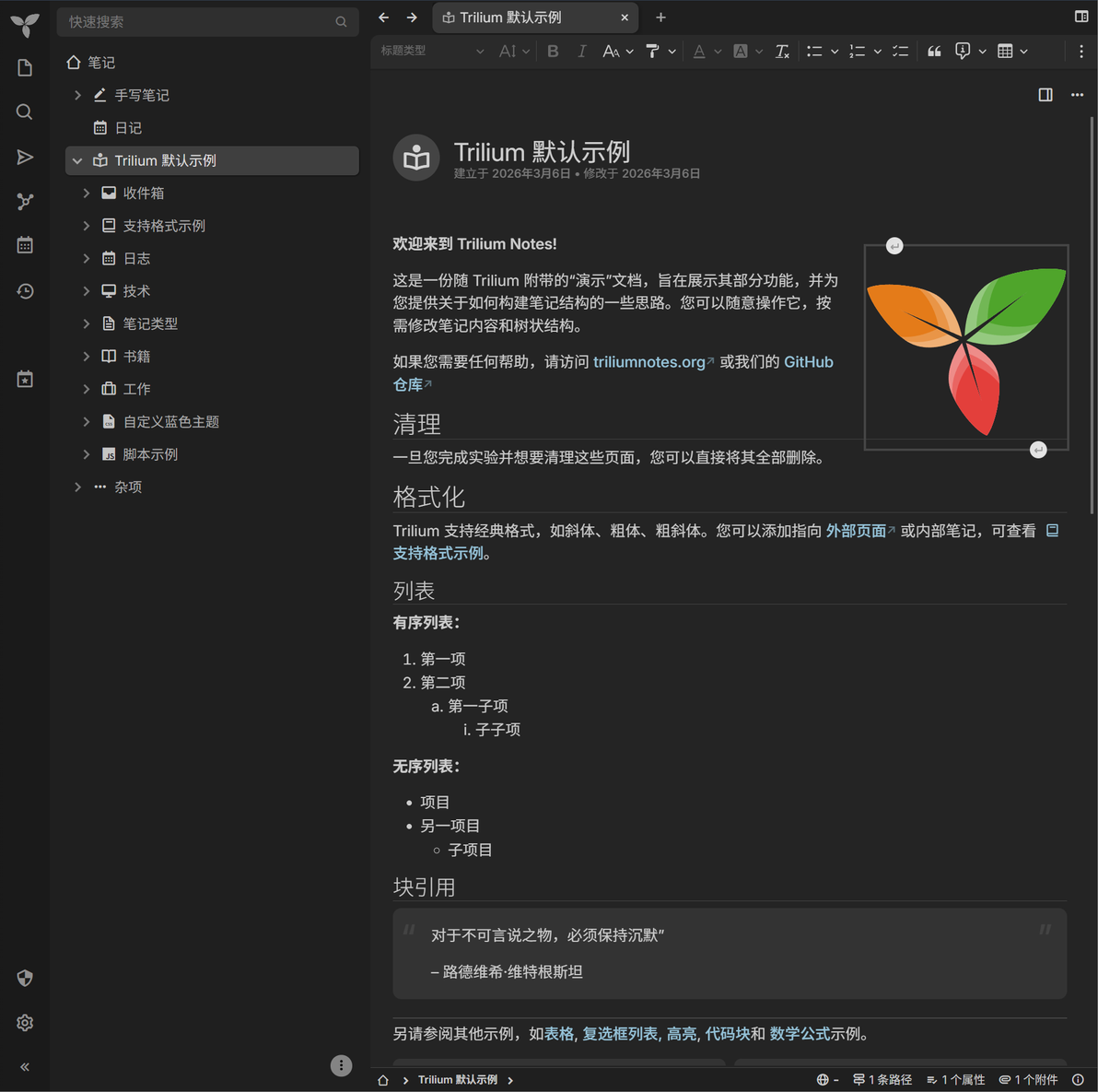
Trilium Notes 是一款免费且开源、跨平台的阶层式笔记应用程序,专注于建立大型个人知识库。支持中文。
支持的文本类型丰富,支持富文本、Markdown、代码块(语法高亮)、LaTeX 公式、Mermaid 图表等,还支持思维导图、画布绘图、日历、看板,双链笔记等多种可视化呈现形式。
还支持设置 TOTP 两部验证,提高安全性。
也支持将笔记公开分享,就像wiki一样。
项目地址
官网 https://triliumnotes.org/zh-Hans/get-started
GitHub仓库 https://github.com/TriliumNext/Trilium
ghcr.io https://github.com/TriliumNext/Trilium/pkgs/container/trilium
DockerHub https://hub.docker.com/r/triliumnext/trilium/tags
提供有偿远程部署服务(一杯奶茶即可)。
联系方式: B站私信 微信号 E-0_0- 闲鱼用户名 明月人间 邮箱 firfe163@163.com
声明:该服务仅为不熟悉 Docker 的朋友提供。
部署方法
Docker Run 命令
docker run -d \
--name trilium \
--network bridge \
--restart always \
--log-opt max-size=1m \
--log-opt max-file=1 \
-e USER_UID=1000 \
-e USER_GID=1001 \
-v /etc/timezone:/etc/timezone:ro \
-v /etc/localtime:/etc/localtime:ro \
-v 数据目录:/home/node/trilium-data \
-p 端口:8080 \
triliumnext/trilium:latestCompose 文件部署内容
#version: '3'
name: trilium
services:
  trilium:
    container_name: trilium
    image: triliumnext/trilium:v0.102.0 # latest
    network_mode: bridge
    restart: always
    #cpus: 1
    #mem_limit: 512m
    logging:
      options:
        max-size: 1m
        max-file: '1'
    environment:
      - USER_UID=1000
      - USER_GID=1000
    ports:
      - 端口:8080
    volumes:
      - /etc/timezone:/etc/timezone:ro
      - /etc/localtime:/etc/localtime:ro
      - ./data:/home/node/trilium-data
初始化
初次打开项目,需要进行初始化设置。
功能选择
Trilium Notes setup Trilium 笔记 设置
(选择这个) I'm a new user, and I want to create a new Trilium document for my notes
我是新用户,想创建一个新的 Trilium 文档来记笔记
I have a desktop instance already, and I want to set up sync with it
我已有桌面版实例,想设置与它同步
I have a server instance already, and I want to set up sync with it
我已有服务器实例,想设置与它同步
设置密码
Set password 设置密码
Before you can start using Trilium from web, you need to set a password first.
You will then use this password to login.
在开始使用网页版 Trilium 之前,您需要先设置密码。之后您将使用此密码登录。
Password 密码
Password confirmation 确认密码
Set password 设置密码
设置中文
登录到首页 => 左下角齿轮(Settings)图标
Options => Language & Region
Language 选择 简体中文
Date & number format 选择 简体中文
点击 Restart the application to view the changes
内容语言 选择 简体中文
效果图