

keynote:
inform the team before installing any software / packages
1) Connecting to server:
ssh -x mmlab@172.16.31.165
OR
ssh -x mmlab@172.16.33.233
ssh : command
-x : enable visual feedback
mmlab: computer name
172.16.30.121: ip address
passward: 1
2) To view files:
- nagivate to the folder in the terminal
- gedit "filename"
3) To transfer files:
- open filezilla
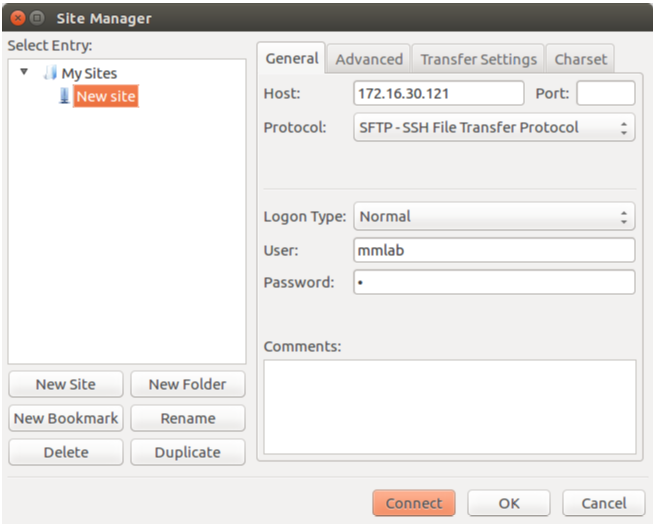
- under remote site
- type "/media/mmlab/data
- drag and drop the folder/files.
4) visual studio code
- install vscode in personal laptop
- open the ssh files
- can directly edit files.
5) using local computer, open server terminal to run the code in the server.
6) using screen
- sudo apt-get install screen # installing screen for the first time
- screen -S "name" # create new screens
- screen -ls # list all the active screen sessions
- ctrl+a d # detach the screen terminal
- screen -r "name" # reattach to the screen terminal
- ctrl+c # kill the code
- exit # exit the session
7) nvidia-smi check GPU
8)
Virtual Environment
cd /media/mmlab/dataset/mengya/recurrent virtualenv -p /usr/bin/python3 env source env/bin/activate
pip install -r requirments.txt
deactivate OR virtualenv -p /usr/bin/python2 env2 source env2/bin/activate
CONDA Environment
conda env create -f environment_yx1.yml 3.After installing anaconda and setting up the environment, run the following code to get into the environment. source activate yx1 If you want to exit from this environment, you can run the following code to exit. source deactivate conda activate m2release conda deactivate conda activate and conda deactivate only work on conda 4.6 and later versions. For conda versions prior to 4.6, run: Windows: activate or deactivate Linux and macOS: source activate or source deactivate
