

概述
Obsidian 和 Zotero 都是深受广大用户喜爱的知识管理和文献管理软件,两者定位和侧重点不同,一方以文献见长,一方以笔记和丰富的插件生态构建自己的工作流为主。
那么能不能将文献管理和笔记工作流完美融合,做到鱼与熊掌兼得呢?

1.安装插件
Obsidian
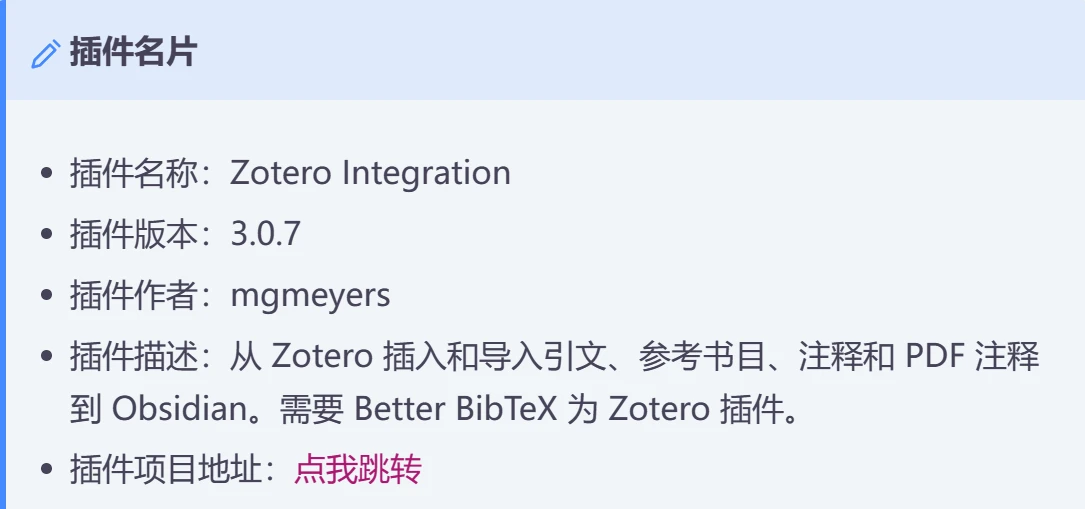
Zotero Integration 安装 - 启用
Zotero
Better BibTex for Zotero
安装 - 重启 zotero
2 Zotero设置
2.1 设置引文格式为 IEEE
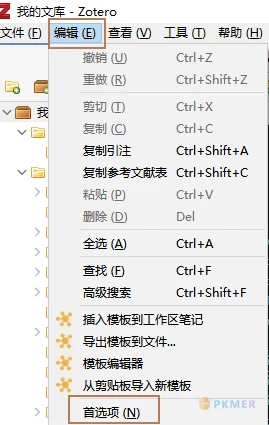
1.左上角打开编辑 - 首选项
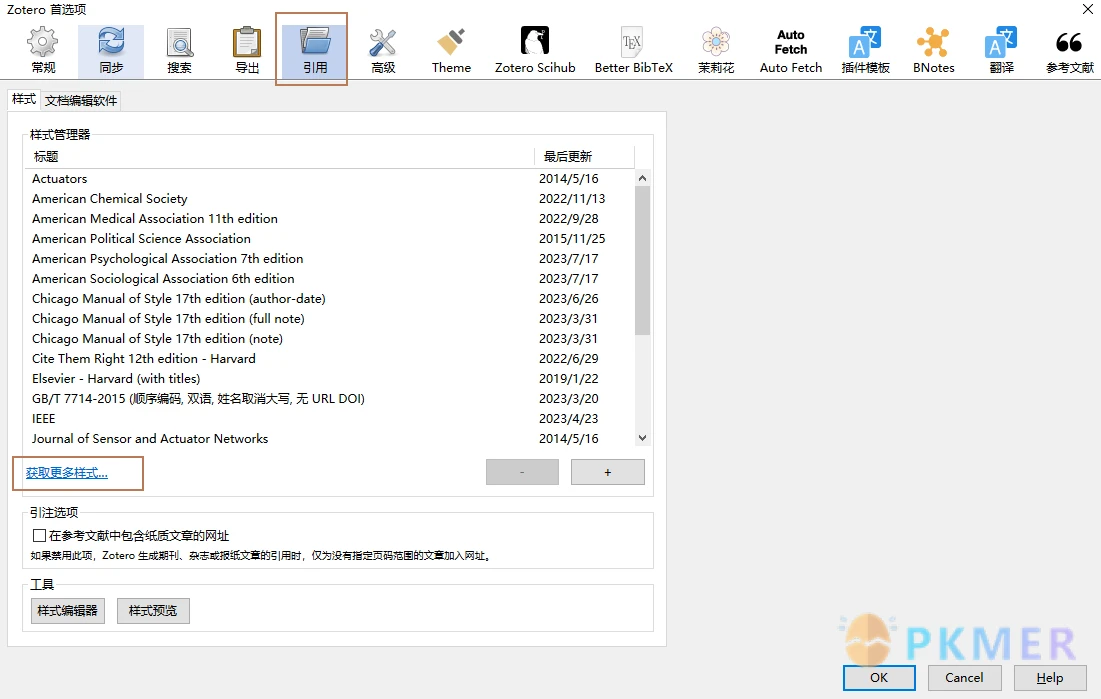
2.添加 IEEE 最新的引文(要保证是最新的)
3.输入 IEEE 进行搜索
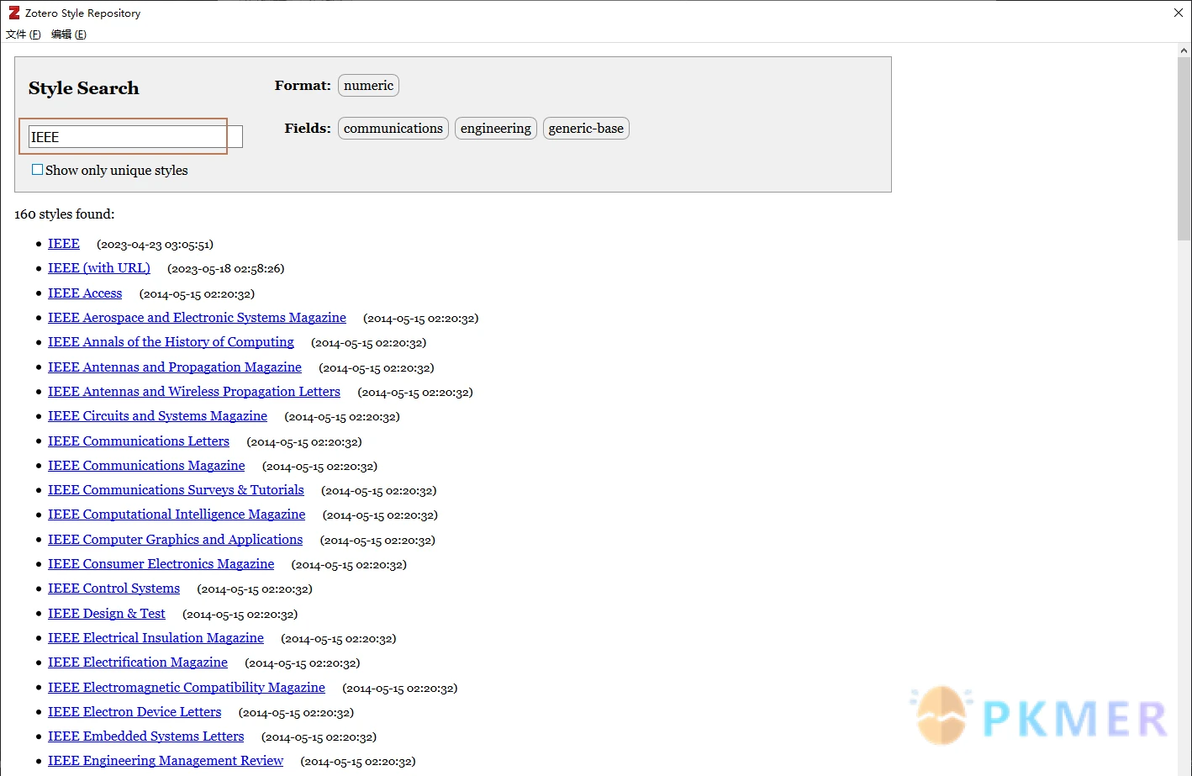
4.双击第一个 IEEE,Zotero 会自动加载,关闭样式搜索界面。
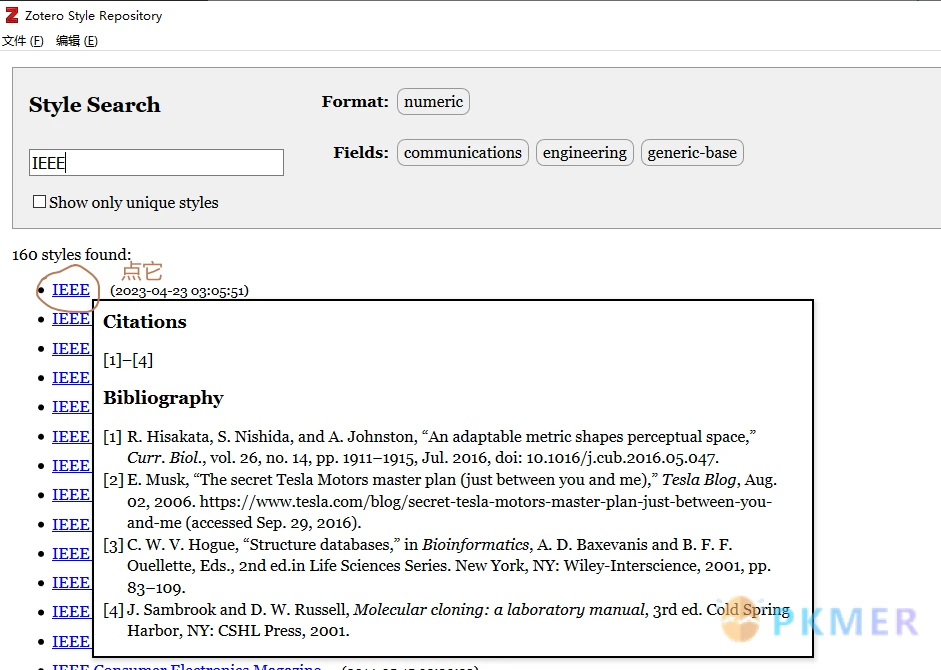
5.可以看到 IEEE 已经加载进来
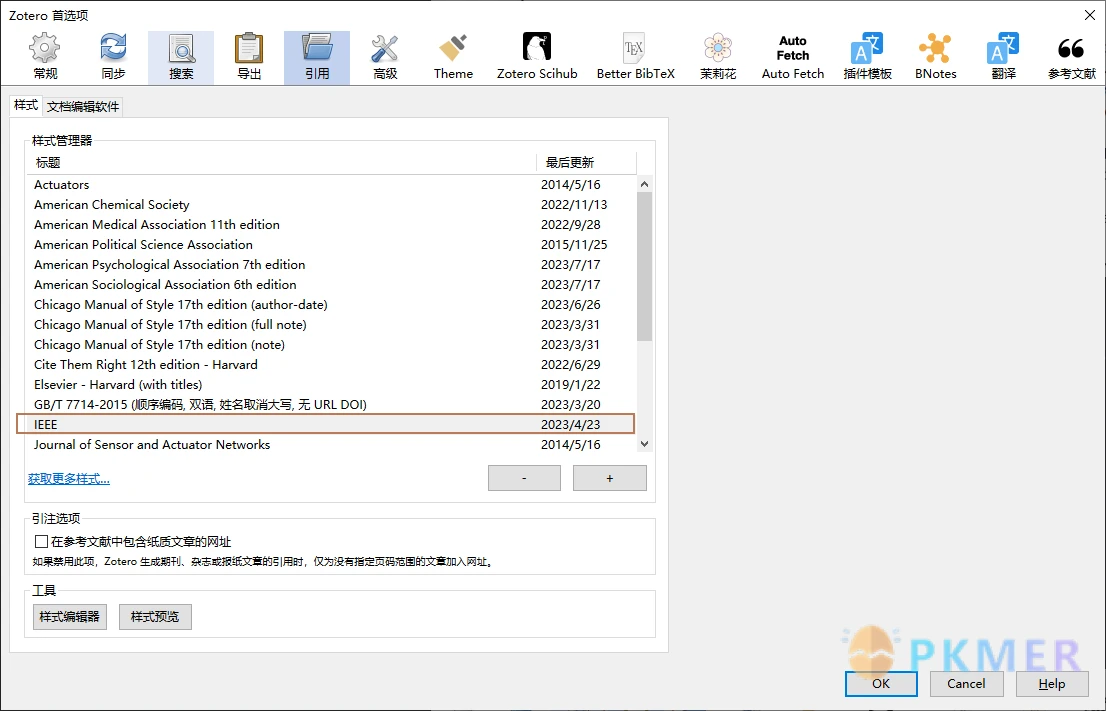
2.2设置引文样式
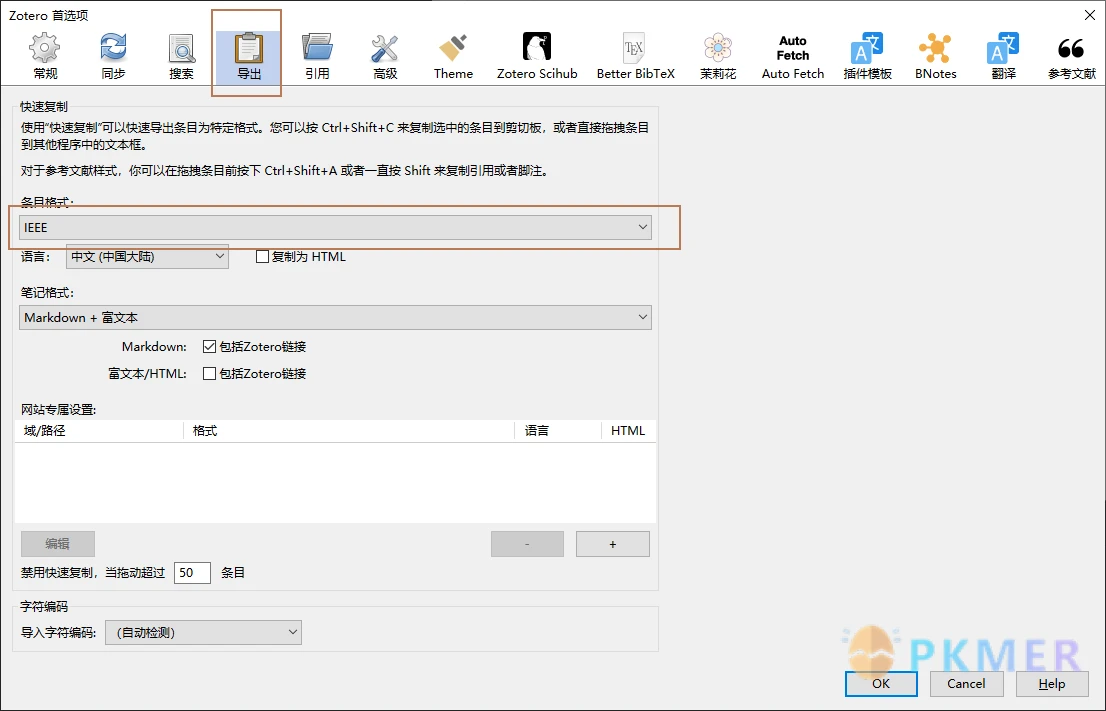
点击首选项中的导出;
设置条目格式为 IEEE;
点击 OK,关闭 Zotero
2.3 注意
IEEE 亦可设置成其他样式,但要保证 OB 中和 zotero 中一致,并且 Zotero 需要最新的引文样式。
3 Obsidian 设置
3.1 Obsidian 中创建文件夹
保证文件夹相对路径为以下形式:
文献笔记(是你自己的 OB 文献笔记文件夹)
Attachments:用来储存图片
3.2 PDF 工具下载
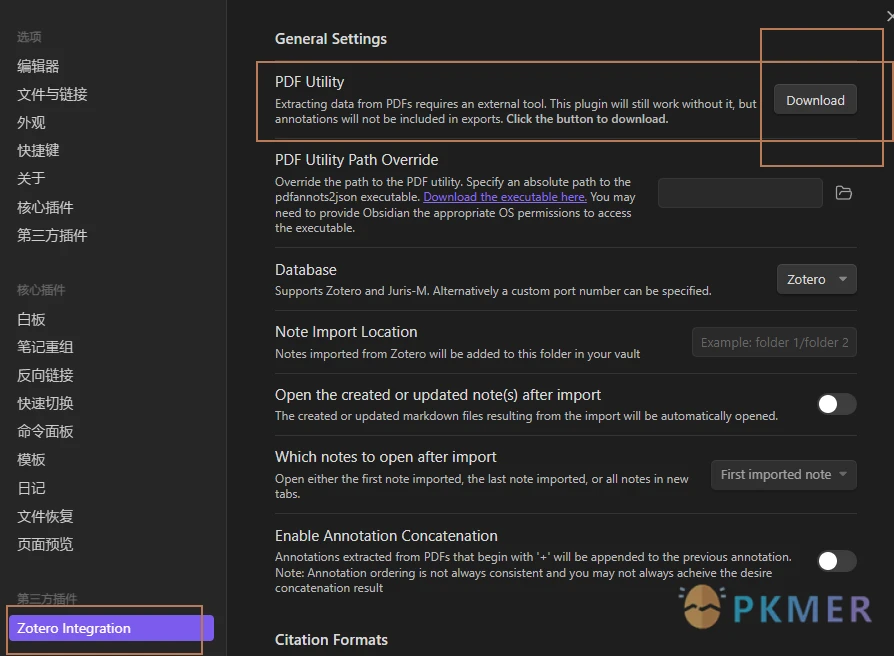
打开安装的 Zotero Interation 插件,找到插件选项
点击下载,用来提取 pdf 注释。要下载一会儿,可以先进行其他设置。
3.3 PDF Utility Path Override
不用管,暂时用不到此功能
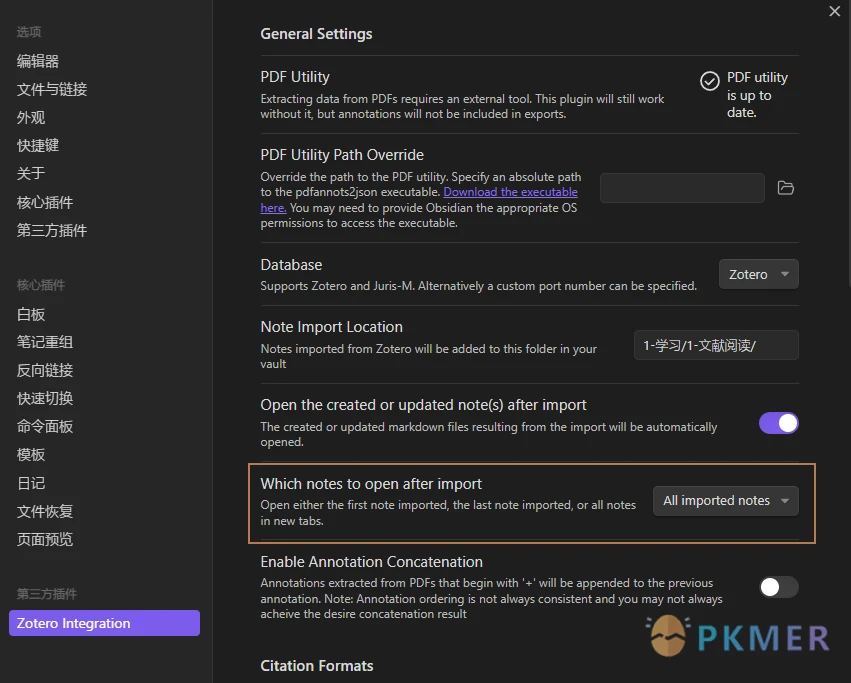
3.4 选择 Database,保持默认 -Zotero
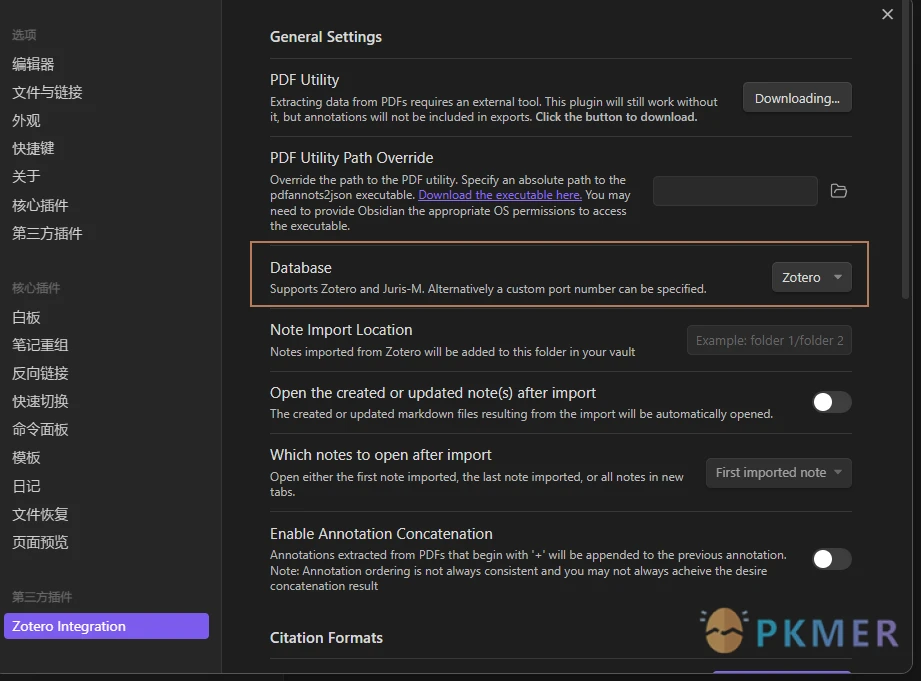
3.5 设置笔记导出路径
我的文件夹为
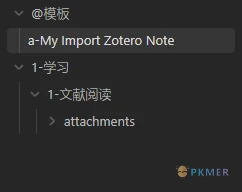
因此路径设置为 1-学习/1-文献阅读/,(注意最后的/必须要有)
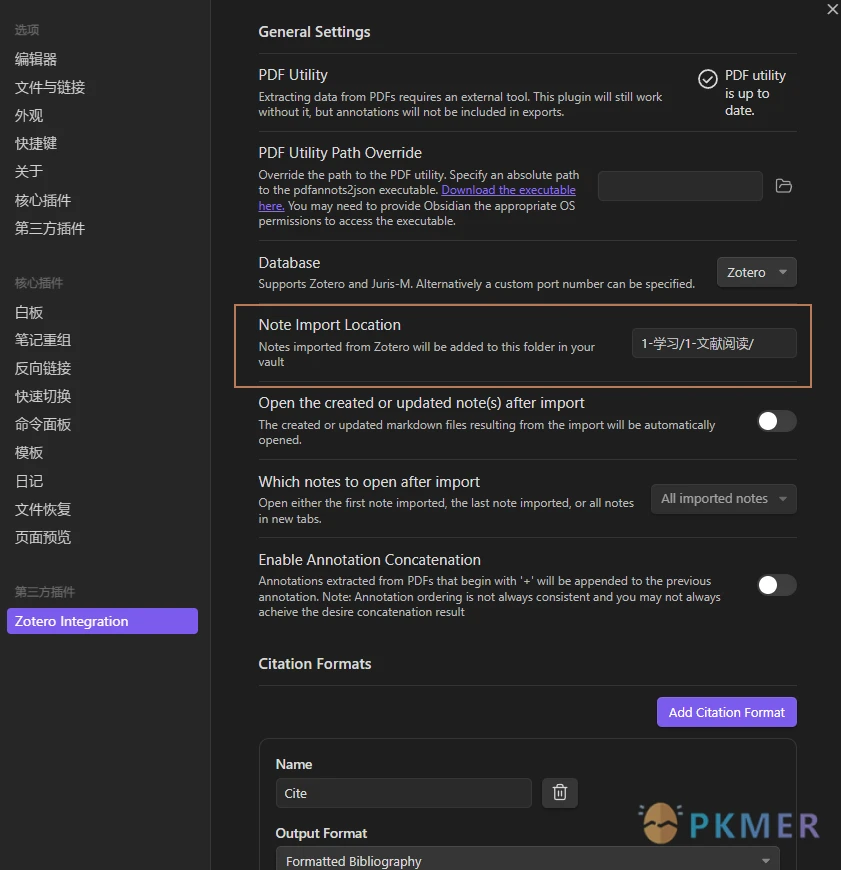
3.6 设置导入后打开导入的文件
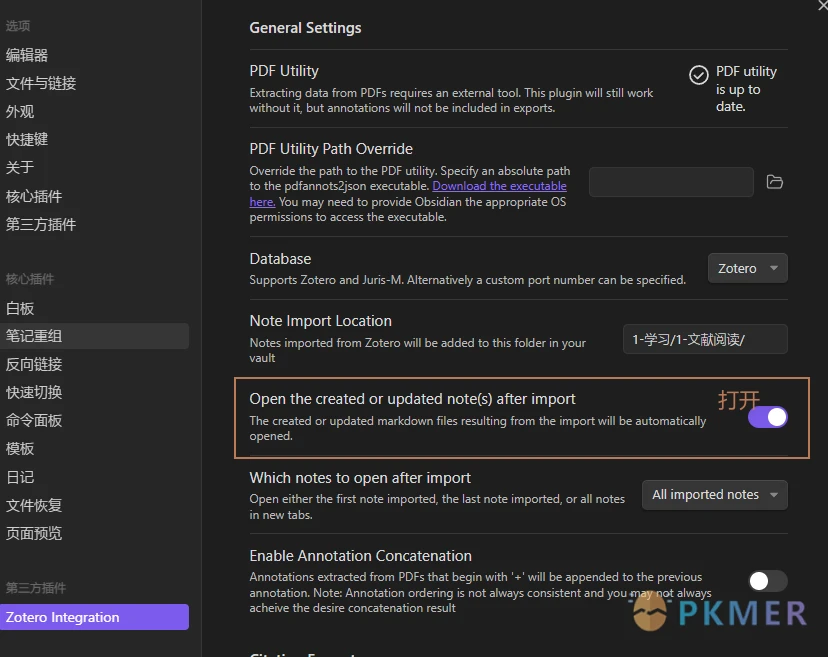
3.7 设置打开所有导入的文件
当导入多篇文献时,看自己喜好选择,是打开第一个,还是打开最后一个,还是全部打开。
3.8 设置引文格式
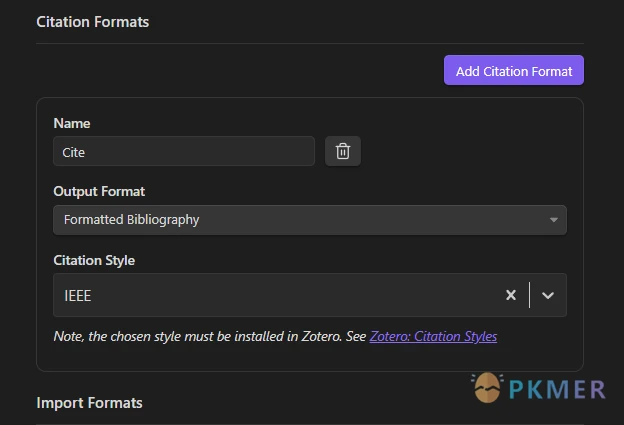
此功能插入一篇文献的引文
Name: 是命令的名字,建议设置成方便记方便查找的名称;
Output Format:是输出的格式;
Citation Style:是引文格式,这里选 IEEE,与 Zotero 设置需相同 (应该选择第二个 IEEE)。
3.8.1 点击 Add Citation Format
3.9 导入文献笔记时的设置
点击 Add Import Format,会自动生成一个;
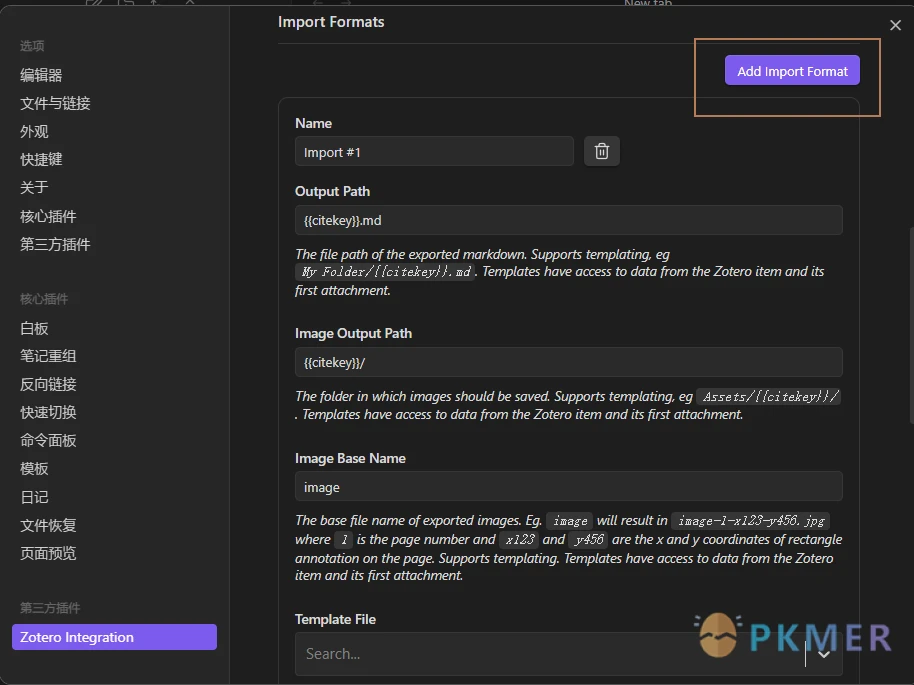
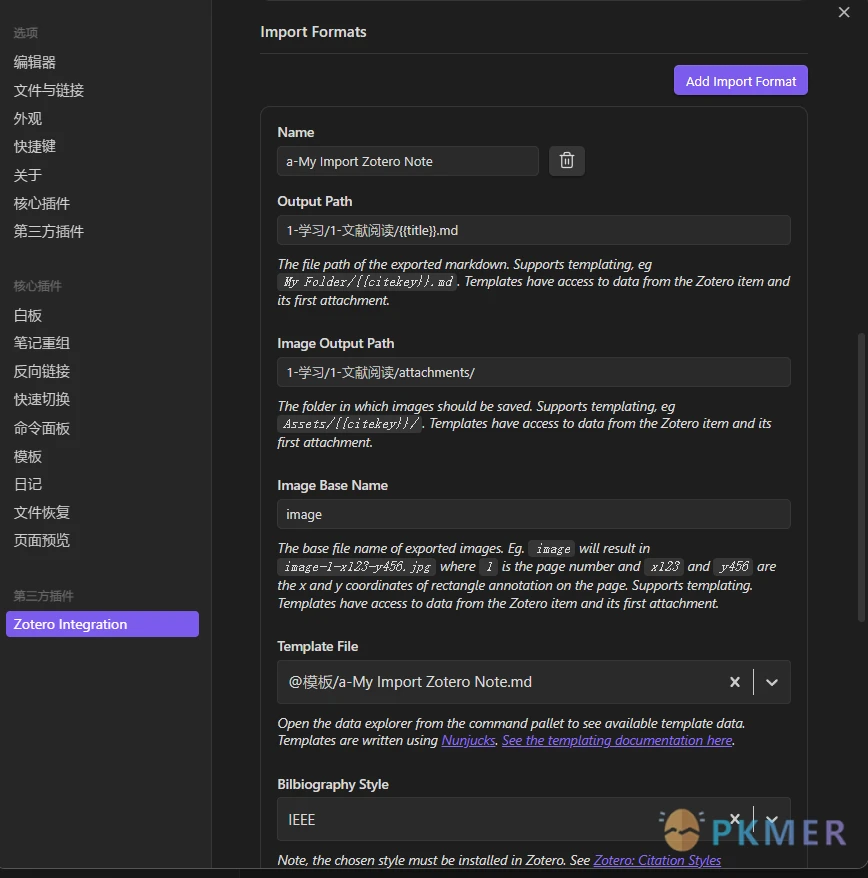
将其中的设置改为以下图片中的设置
Name:此插件导入文献笔记的命令名称,建议设置成方便记方便查找的名称;

Output Path:导入文件的路径以及名称,采用 {{title}} ,意为以文献题目来命名笔记的名字;

Image Output Path:存放图片的文件夹(要有/)

Image Base Name:保持默认,是文献中图片拷贝过来的图片的基本名称,为了区别吗,会加上数字字母等符号;

Template File:模板文件,与 OB 模板文件相同,添加对应的模板文件

Bilbiography Style:保证与 Zotero 设置相同,这里设置 IEEE,会跳出来两个,选择第二个。

3.10 后续设置保持默认即可
图片格式以及 OCR 功能
3.11 至此,设置完成,可以关闭设置面板了
4 模板制作
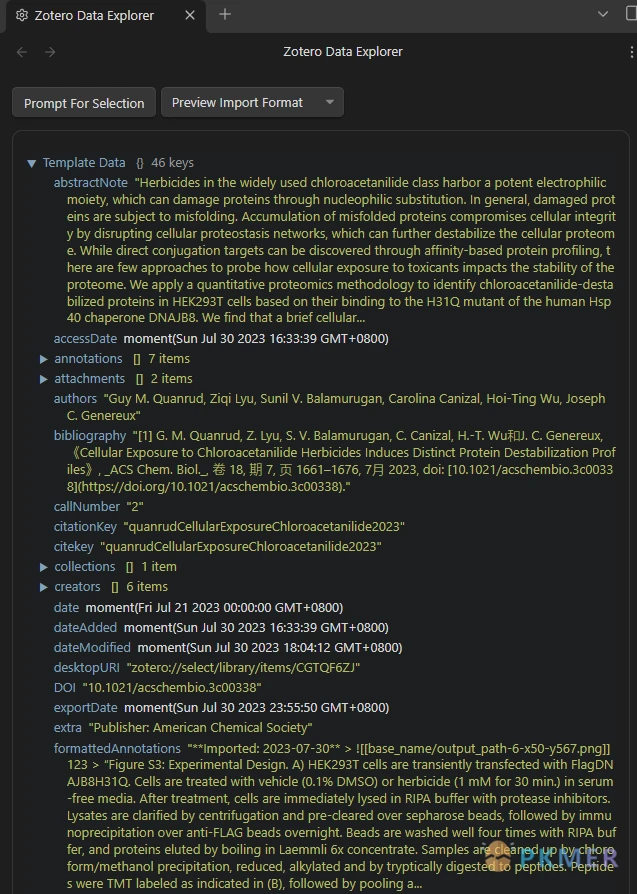
4.1 条目信息
普通内容占位符{{……}}
针对该占位符包含多个独立内容,使用 loop.last 提取完整信息
{% for t in creators %}{{t.firstName}}{{t.lastName}}{{t.name}}{% if not loop.last %}, {% endif %}{% endfor %}对于日期,默认导入形式为时间戳,需要使用 format() 进行转换
{% if date %}{{date | format("YYYY-MM")}}{% endif %}4.2 提取 PDF 注释
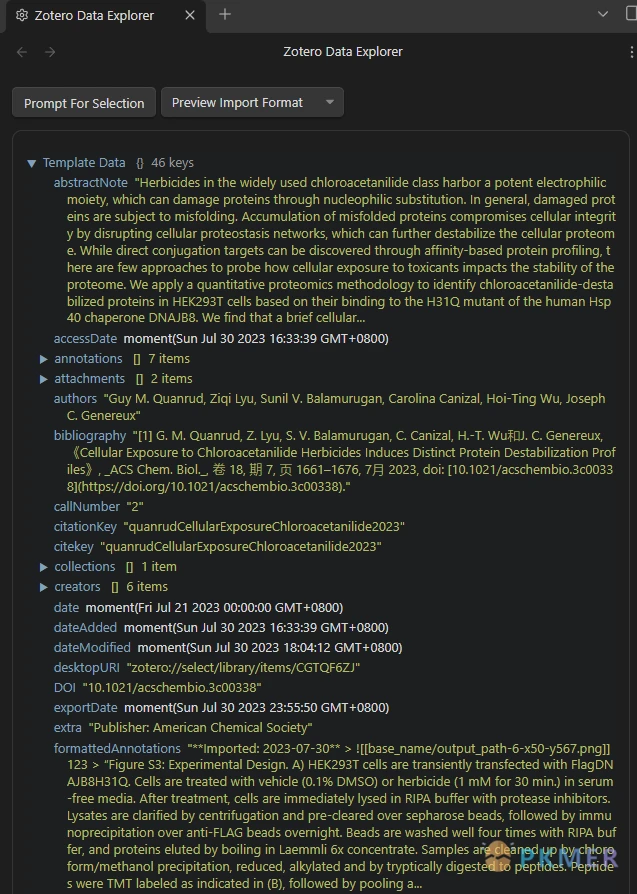
在 Annotation 内可找到每条注释的相关信息
基本语法
{% for annotation in annotations %}...do something...{% endfor %}可以在 for 循环内添加 if……endif 语句进行判断,从而对不同格式的注释进行设置
{% for annotation in annotations %}
{% if annotation.color == '#a28ae5' %}## {{annotation.annotatedText}}{{annotation.comment}}{% endif %}
{% endfor %}
提取图片
{% for annotation in annotations %}
{% if annotation.color == '#a28ae5' %}## {{annotation.annotatedText}}{{annotation.comment}}{% endif %}
{% if annotation.imageBaseName %}![[{{annotation.imageBaseName}}]]{% endif %}
{% endfor %}
4.3 添加跳转链接
由于 data exploer 内没有跳转链接的信息,我们需要通过不同的数据来生成我们需要的链接
zotero 自带的导出 markdown 笔记会包含跳转链接,我们以此观察跳转链接的组成形式为 [文本](zotero://open-pdf/library/items/附件编号?页码&注释编号)

所以我们可以在数据中找到拥有类似信息的内容加以删减、组合
{% for annotation in annotations %}
{% if annotation.color == '#a28ae5' %}## {{annotation.annotatedText}}{{annotation.comment}}{% endif %}
{{pdfZoteroLink|replace("//select/", "//open-pdf/")|replace(")", "")}}?page={{annotation.page}}&annotation={{annotation.id}})
{% endfor %}
或者采用(需 attachments 占位符内的第一个附件为注释的 PDF):

{% for annotation in annotations %}
{% if annotation.color == '#a28ae5' %}## {{annotation.annotatedText}}{{annotation.comment}}{% endif %}
[随便写啥](zotero://open-pdf/library/items/{% for t in attachments %}{% if loop.first %}{{t.itemKey}}{% endif %}{% endfor %}?{{annotation.page}}&annotation={{annotation.id}})
{% endfor %}
4.4 模板的拆分与组装
你可以选择将条目信息与注释的模板进行拆分、排列组合,进一步拓展插件的使用情境
{% include "[[模板文件名]]" %}通过 persist 可以实现分节的效果,使得多次导入同一条目时之前的信息不会被覆盖
## {{title}}

### Notes
{% persist "notes" %}
{% endpersist %}也可以通过过滤器 filterby 仅导入自上次导入以来添加的批注
{% persist "annotations" %}
{% set newAnnotations = annotations | filterby("date", "dateafter", lastImportDate) %}
{% if newAnnotations.length > 0 %}

### Imported: {{importDate | format("YYYY-MM-DD h:mm a")}}

{% for a in newAnnotations %}
> {{a.annotatedText}}
{% endfor %}

{% endif %}
{% endpersist %}
4.5 如何设置注释编号
{% set i=1%}{% for annotation in annotations %}
### 第{{i}}个注释{% set i=i+1 %}{% endfor %}4.6 最终模板
---
status: todo
weight: 1
field:
date: {% if date %}{{date | format("YYYY-MM")}}{% endif %}
DOI: {% if DOI %}{{DOI}}{% endif %}
tags:
- {{allTags}}
- 文献笔记
authors: {% for t in creators %}{{t.firstName}}{{t.lastName}}{{t.name}}{% if not loop.last %}, {% endif %}{% endfor %}
期刊: {% if journalAbbreviation %}{{journalAbbreviation}}{% endif %}
languages: {{language}}
类别: {{itemType}} {{thesisType}}
期刊: {{publicationTitle}} {{university}}
---

# 论文信息
**title:** {{title}}
**DOI:** {{DOI}}
**tags:** {{allTags}}
**level:** {% if archive %}{{archive}}{% endif %} {% if archiveLocation%}{{archiveLocation}}{% endif %}
**IF:** {% if callNuimber %}{{callNuimber}}{% endif %}
**期刊:** {{publicationTitle}} {{university}}
**类别:** {{itemType}} {{thesisType}}

## abstract:
{{abstractNote}}

## Files and Links
- **Url**: [Open online]({{url}})
- **zotero entry**: {{pdfZoteroLink}}
- **open pdf**: [zotero]({{select}})

# 概要

# 研究对象

# 背景

# 方法

# 结论

# 标注
## 黄色
{% set i=1%}{% for annotation in annotations %}{% if annotation.color == '#ffd400' %}
### 第{{i}}个注释{% set i=i+1 %}
#### 文本:
{{annotation.annotatedText}}
#### 评论:
{{annotation.comment}}{% if annotation.imageBaseName %}
![[{{annotation.imageBaseName}}]]{% endif %}

#### zotero位置:
{{pdfZoteroLink|replace("//select/", "//open-pdf/")|replace(")", "")}}?page={{annotation.page}}&annotation={{annotation.id}})
{% endif %}

{% endfor %}

## 红色

{% set i=1%}{% for annotation in annotations %}{% if annotation.color == '#ff6666' %}
### 第{{i}}个注释{% set i=i+1 %}
#### 文本:
{{annotation.annotatedText}}
#### 评论:
{{annotation.comment}}{% if annotation.imageBaseName %}
![[{{annotation.imageBaseName}}]]{% endif %}
#### zotero位置:
{{pdfZoteroLink|replace("//select/", "//open-pdf/")|replace(")", "")}}?page={{annotation.page}}&annotation={{annotation.id}})
{% endif %}

{% endfor %}

## 绿色

{% set i=1%}{% for annotation in annotations %}{% if annotation.color == '#5fb236' %}
### 第{{i}}个注释{% set i=i+1 %}
#### 文本:
{{annotation.annotatedText}}
#### 评论:
{{annotation.comment}}{% if annotation.imageBaseName %}
![[{{annotation.imageBaseName}}]]{% endif %}
#### zotero位置:
{{pdfZoteroLink|replace("//select/", "//open-pdf/")|replace(")", "")}}?page={{annotation.page}}&annotation={{annotation.id}})
{% endif %}

{% endfor %}

## 蓝色

{% set i=1%}{% for annotation in annotations %}{% if annotation.color == '#2ea8e5' %}
### 第{{i}}个注释{% set i=i+1 %}
#### 文本:
{{annotation.annotatedText}}
#### 评论:
{{annotation.comment}}{% if annotation.imageBaseName %}
![[{{annotation.imageBaseName}}]]{% endif %}
#### zotero位置:
{{pdfZoteroLink|replace("//select/", "//open-pdf/")|replace(")", "")}}?page={{annotation.page}}&annotation={{annotation.id}})
{% endif %}

{% endfor %}

## 紫色

{% set i=1%}{% for annotation in annotations %}{% if annotation.color == '#a28ae5' %}
### 第{{i}}个注释{% set i=i+1 %}
#### 文本:
{{annotation.annotatedText}}
#### 评论:
{{annotation.comment}}{% if annotation.imageBaseName %}
![[{{annotation.imageBaseName}}]]{% endif %}
#### zotero位置:
{{pdfZoteroLink|replace("//select/", "//open-pdf/")|replace(")", "")}}?page={{annotation.page}}&annotation={{annotation.id}})
{% endif %}

{% endfor %}

## 洋红色

{% set i=1%}{% for annotation in annotations %}{% if annotation.color == '#e56eee' %}
### 第{{i}}个注释{% set i=i+1 %}
#### 文本:
{{annotation.annotatedText}}
#### 评论:
{{annotation.comment}}{% if annotation.imageBaseName %}
![[{{annotation.imageBaseName}}]]{% endif %}
#### zotero位置:
{{pdfZoteroLink|replace("//select/", "//open-pdf/")|replace(")", "")}}?page={{annotation.page}}&annotation={{annotation.id}})
{% endif %}

{% endfor %}

## 橘色

{% set i=1%}{% for annotation in annotations %}{% if annotation.color == '#f19837' %}
### 第{{i}}个注释{% set i=i+1 %}
#### 文本:
{{annotation.annotatedText}}
#### 评论:
{{annotation.comment}}{% if annotation.imageBaseName %}
![[{{annotation.imageBaseName}}]]{% endif %}
#### zotero位置:
{{pdfZoteroLink|replace("//select/", "//open-pdf/")|replace(")", "")}}?page={{annotation.page}}&annotation={{annotation.id}})
{% endif %}

{% endfor %}

## 灰色

{% set i=1%}{% for annotation in annotations %}{% if annotation.color == '#aaaaaa' %}
### 第{{i}}个注释{% set i=i+1 %}
#### 文本:
{{annotation.annotatedText}}
#### 评论:
{{annotation.comment}}{% if annotation.imageBaseName %}
![[{{annotation.imageBaseName}}]]{% endif %}
#### zotero位置:
{{pdfZoteroLink|replace("//select/", "//open-pdf/")|replace(")", "")}}?page={{annotation.page}}&annotation={{annotation.id}})
{% endif %}

{% endfor %}

# 导入记录
{% persist "annotations" %}
{% set newAnnotations = annotations | filterby("date", "dateafter", lastImportDate) %}
{% if newAnnotations.length > 0 %}

## Imported: {{importDate | format("YYYY-MM-DD h:mm a")}}

{% for a in newAnnotations %}
> {{a.annotatedText}}
{% endfor %}

{% endif %}
{% endpersist %}
5 如何使用
注意要保证 zotero 在运行
5.1 插入引文
把光标放在需要插入引文的地方;
按下 Ctrl+P,打开命令界面;
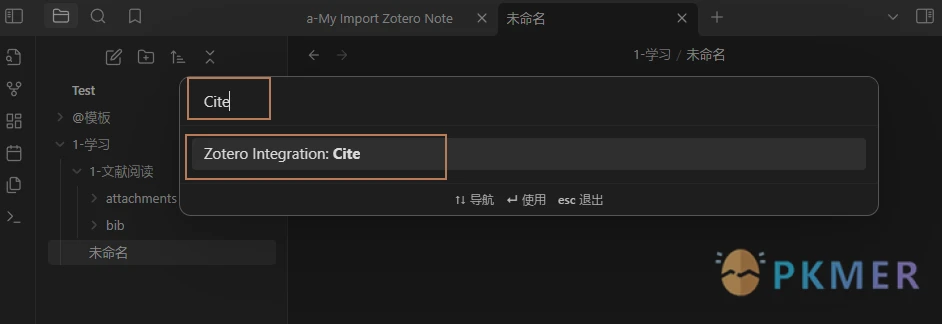
输入 Cite(设置的引文命令名),会自动按名称筛选命令(Cite 是自己设置的命令名字,按自己喜好自定义即可);
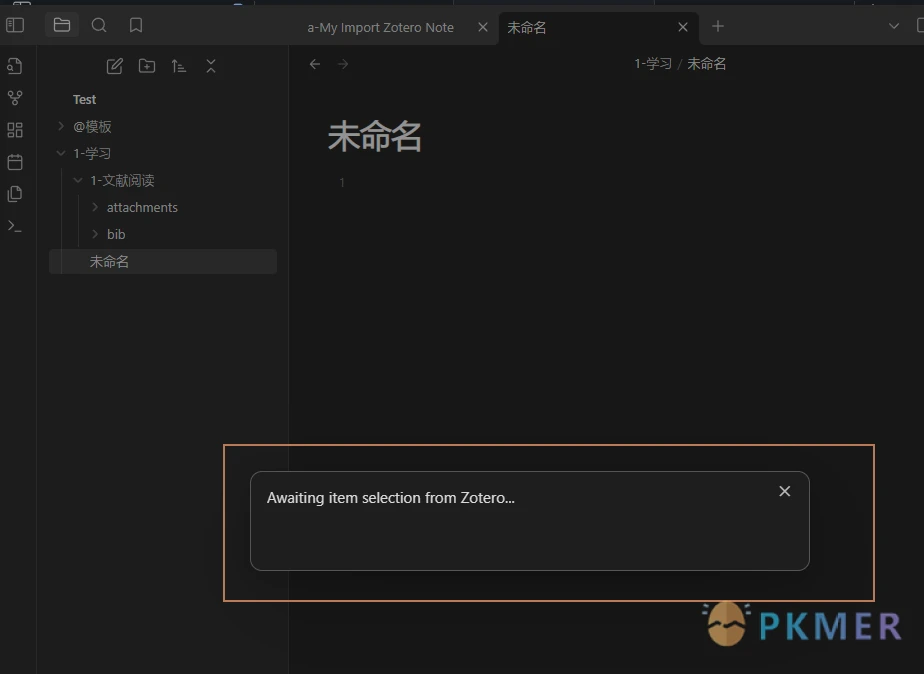
4.按住 Enter回车 或者 鼠标左键点击,会出现以下界面,告诉它在等待从 zotero 选择哪一个条目:
5.此时切换到 zotero 界面,将鼠标放在任务栏的 zotero 上面,会发现多出来一个界面,快速格式化界面,切换到快速格式化界面
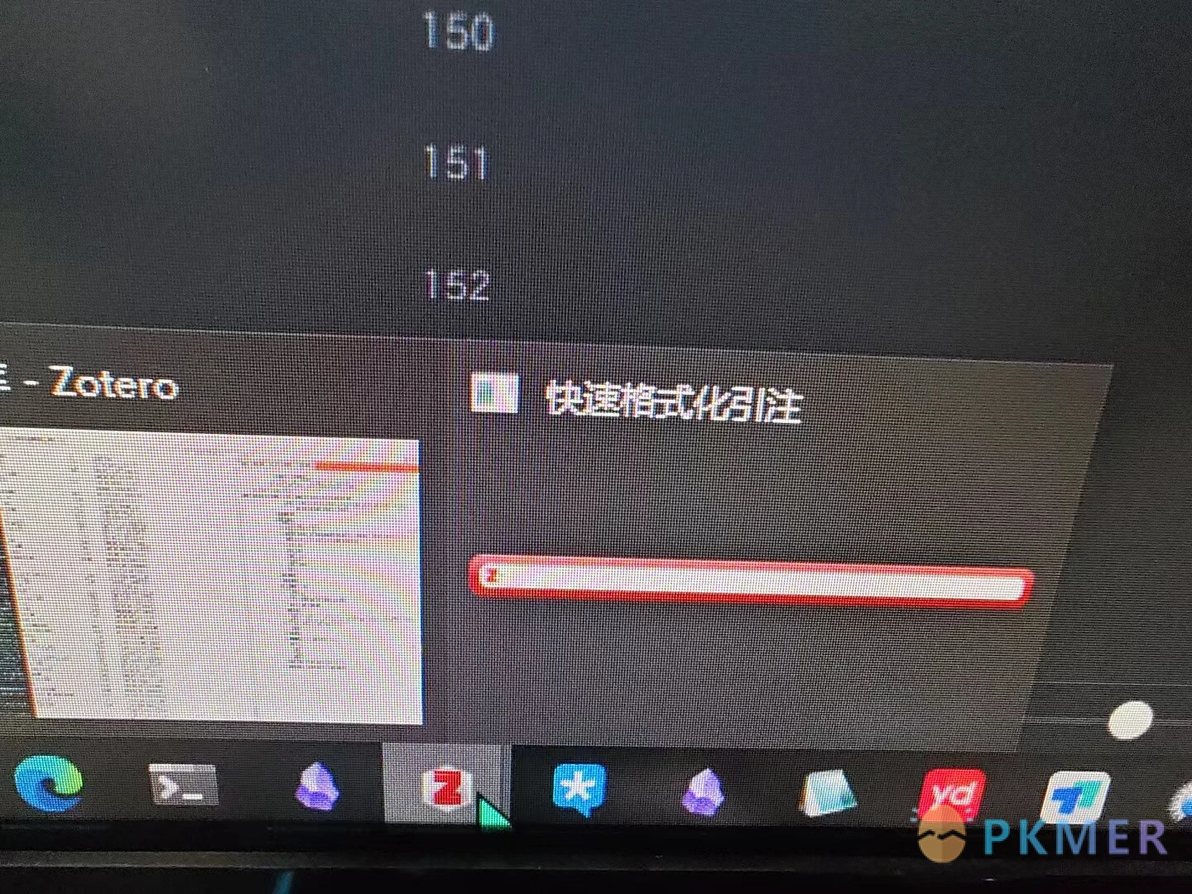
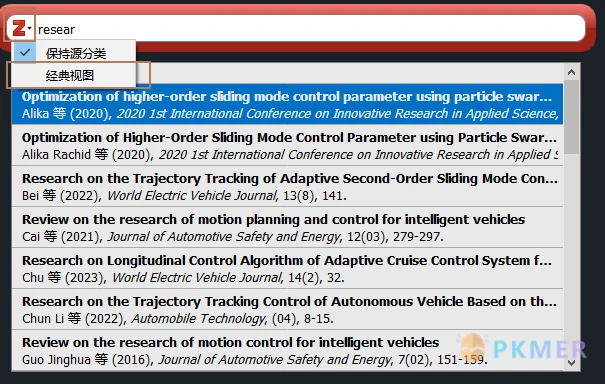
6.输入文献的标题,会进行搜索
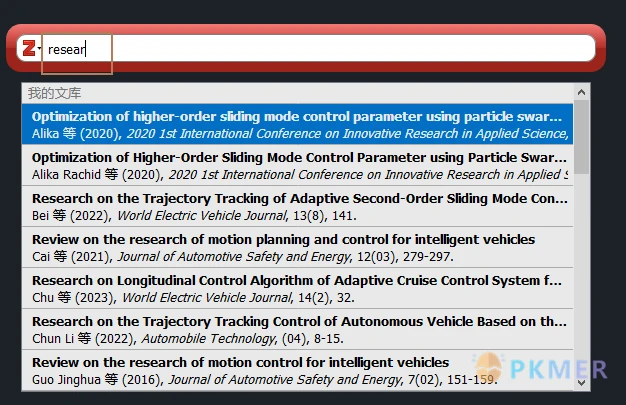
7.第二种方法,点击左侧的 Z,选择经典视图
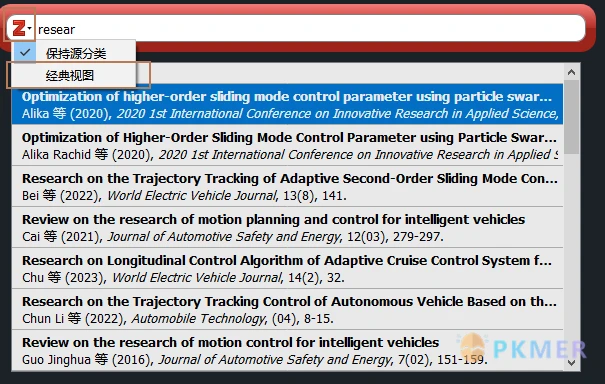
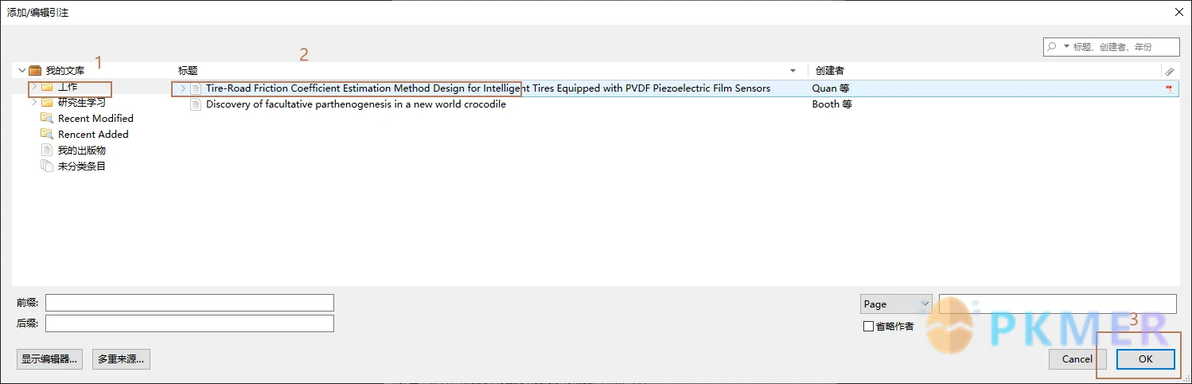
8.找到需要导入的文献,选中文献,点击 OK
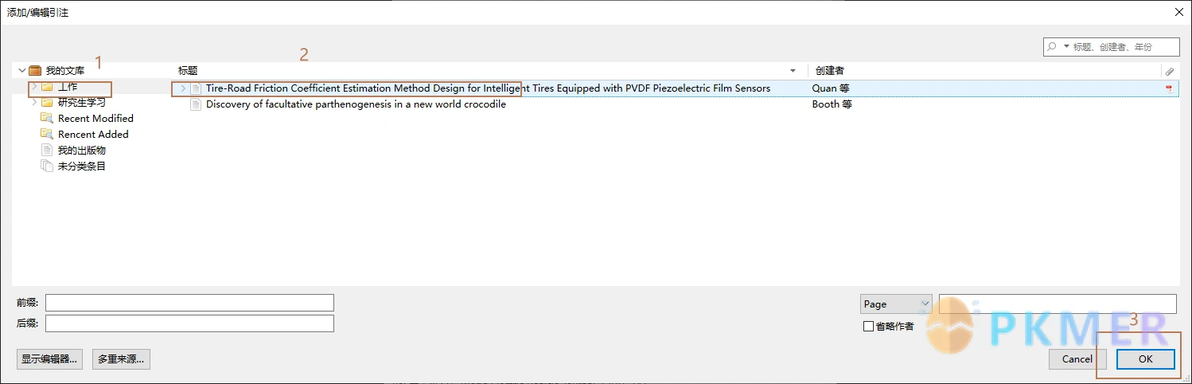
9.回到 OB 界面,会发现多了一条引文。
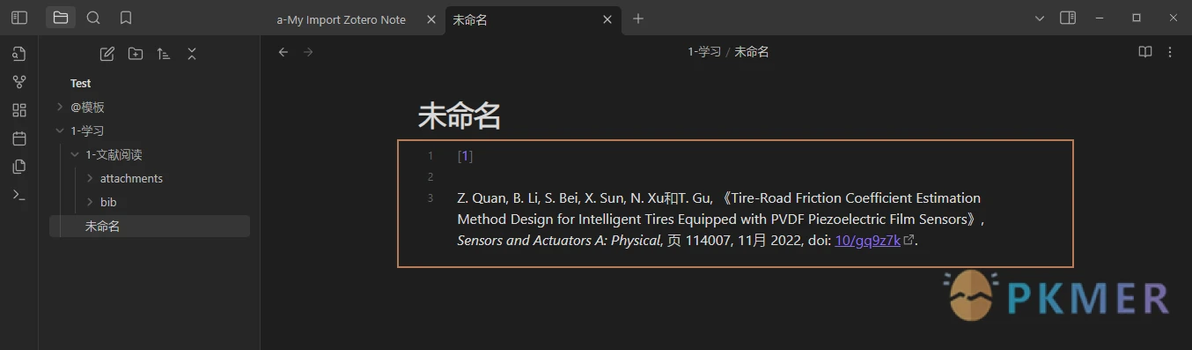
5.2 激动人心的时候到了,导入文献笔记
此功能与上一个功能类似
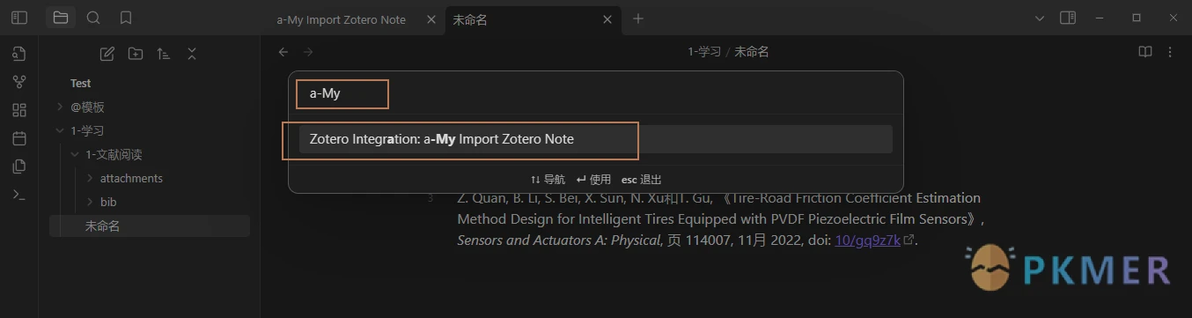
按下 Ctrl+P,打开命令界面;
输入 a-My Import Zotero Note 进行查找命令(这是自己设置的命令名字,按自己喜好自定义即可);
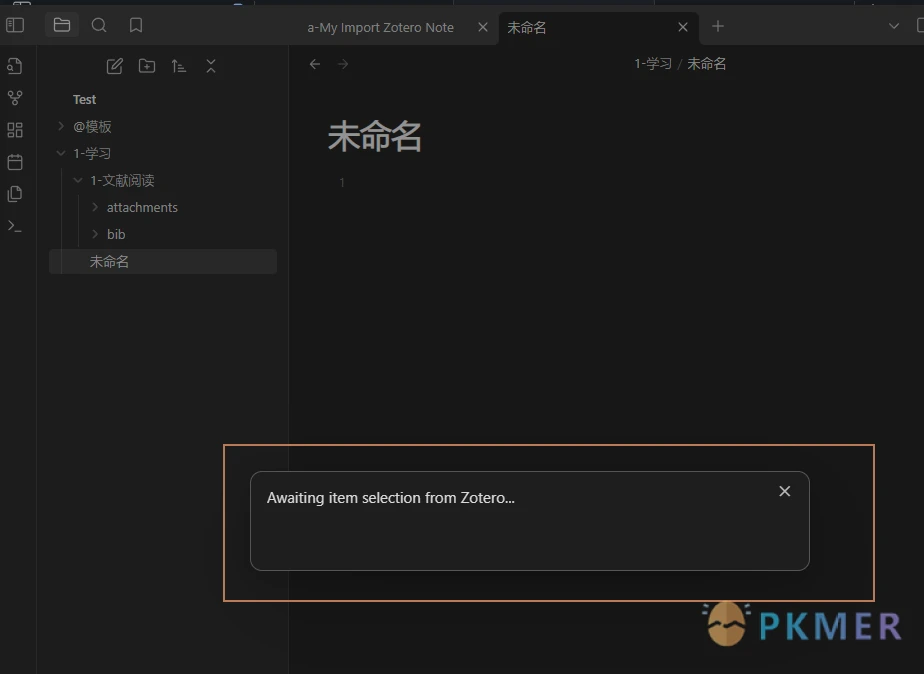
3.按住 Enter回车 或者 鼠标左键点击,会出现以下界面,告诉它在等待从 zotero 选择哪一个条目:
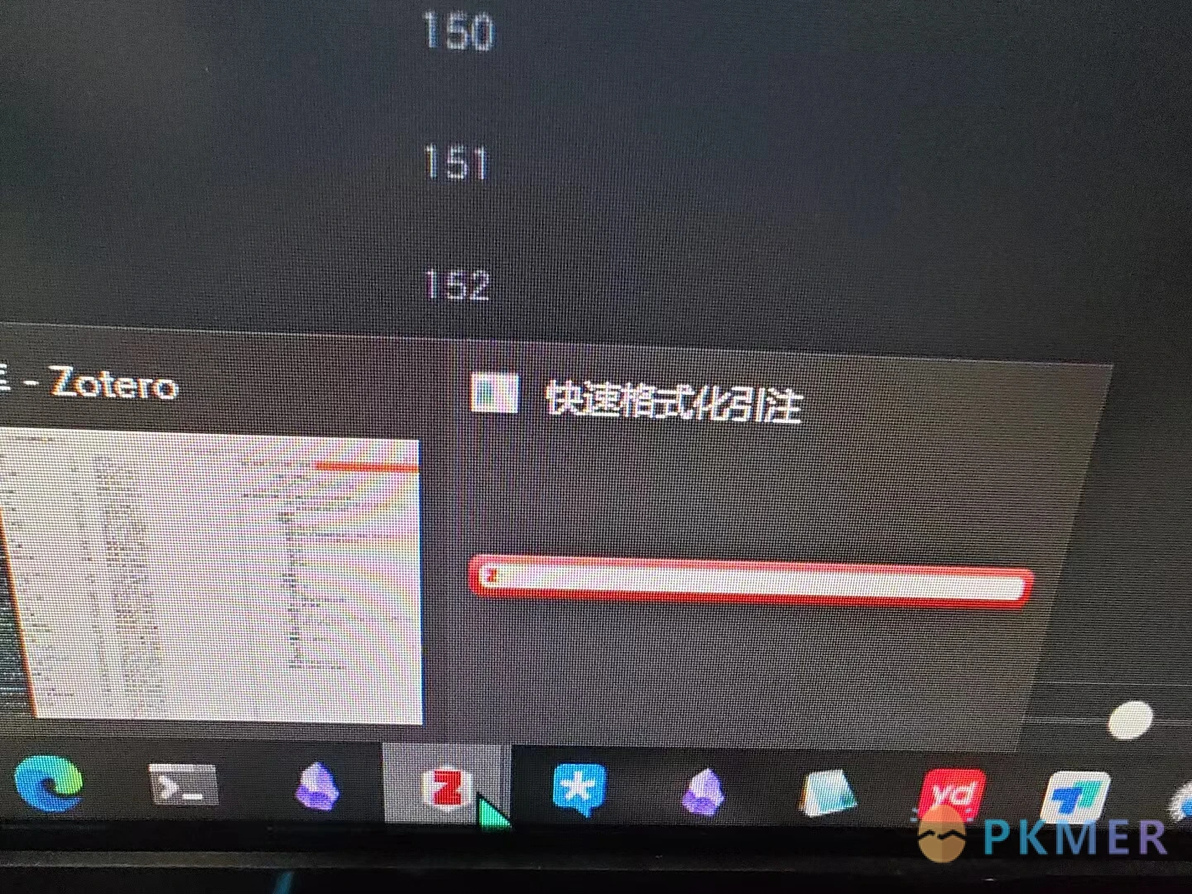
4.此时切换到 zotero 界面,将鼠标放在任务栏的 zotero 上面,会发现多出来一个界面,快速格式化界面,切换到快速格式化界面
5.输入文献的标题,会进行搜索
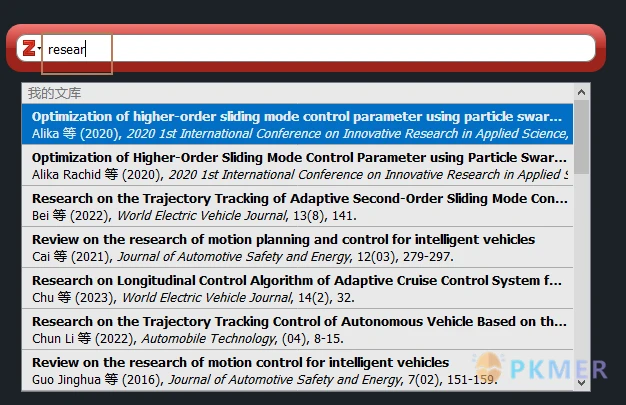
6.第二种方法,点击左侧的 Z,选择经典视图
7.找到需要导入的文献,选中文献,点击 OK
8.此时看到 OB 中打开导入的文献笔记

5.3 模板使用
5.3.1 标注
黄色、红色、绿色、蓝色、紫色、洋红色、橘色、灰色分好类别,将模板中对应的标题改掉。比如如果黄色标注是普通注释,将模板中的 ## 黄色 改为 普通注释。

2.如果只使用三种颜色,把模板中关于其他部分的命令删除即可。
6 参考链接
感谢路子十一 UP 主
参考链接1;https://f8lfn9zs2l.feishu.cn/docx/doxcno0YluQMgtsNTj3SsaOr9Sd
参考链接2;网页链接
参考链接3;https://nunjucks.bootcss.com/
7 注意
模板中某些条目信息基于我自己的 zotero 条目信息存放路径,每个人各不相同,应适当调整。

版权声明:所有 PKMer 文章如果需要转载,请附上原文出处链接。
原文链接:https://pkmer.cn/Pkmer-Docs/10-obsidian/obsidian%E4%BD%BF%E7%94%A8%E6%8A%80%E5%B7%A7/zotero%E5%92%8Cobsidian%E8%81%94%E5%8A%A8/
