
背景:最近沉迷于网盘学习,无法自拔。暂时没有研究羊毛的东西,各位玩家不要喷我。在学习搭建Filebrowser的过程中,了解到了Rclone这个工具,可以实现多网盘挂载。然后通过FileBrowser就能完美实现多网盘聚合分享!感觉特别Cool,立马上手体验了。简单记录一下自己的搭建过程。
Rclone简单介绍
官方文档:https://rclone.org/ 项目地址:https://github.com/rclone/rclone
Rclone 是一个命令行程序,用于管理云存储上的文件,可以通过 HTTP、WebDAV、FTP、SFTP 或 DLNA 服务本地或远程文件。支持多平台网盘同步、上传/下载、网盘互传等功能。
功能性
挂载/同步不同云盘数据;
不同云盘之间数据传递等;
支持性:
支持Windows、Mac、Linux安装;
支持主流网盘GoogleDrive、OneDrive、Dropbox等;
我只是根据常用场景重点列出几个,更多功能见官方文档。接下来开始认真码字。
解题思路
安装Rclone👉配置Rclone👉搭配FileBowser
准备工作:1、服务器;2、已有GoogleDrive、OneDrive等云盘
我的运行环境:甲骨文Linux系统(Arm)+宝塔+Docker
服务器安装好宝塔和Docker。
安装Rclone
ssh工具链接服务器,切换root身份sudo -i使用官方一键安装命令。稍等一会儿,直到提示安装成功。
curl https://rclone.org/install.sh | sudo bash

配置Rclone
配置命令rclone config,进入配置流程。具体可见官方文档,这里暂时演示挂载GoogleDrive,OneDrive后面补。
配置GoogleDrive
初次配置会生成一个配置文件在/config/rclone.conf。请留意注释部分,是需要手动抉择的时候!
一、授权链接GoogleDrive
rclone config
2022/01/23 20:50:11 NOTICE: Config file "/config/rclone.conf" not found - using defaults
No remotes found - make a new one
n) New remote
s) Set configuration password
q) Quit config
n/s/q> n #输入n,创建一个新的。
name> GDrive #给新盘创建一个名称
当你看到教程的时候,Rclone可能已经更新,选择项目序号可能发生变化,请不要无脑照抄哦。
Option Storage.
Type of storage to configure.
Enter a string value. Press Enter for the default ("").
Choose a number from below, or type in your own value.
1 / 1Fichier
\ "fichier"
2 / Alias for an existing remote
\ "alias"
3 / Amazon Drive
\ "amazon cloud drive"
4 / Amazon S3 Compliant Storage Providers including AWS, Alibaba, Ceph, Digital Ocean, Dreamhost, IBM COS, Minio, SeaweedFS, and Tencent COS
\ "s3"
5 / Backblaze B2
\ "b2"
6 / Better checksums for other remotes
\ "hasher"
7 / Box
\ "box"
8 / Cache a remote
\ "cache"
9 / Citrix Sharefile
\ "sharefile"
10 / Compress a remote
\ "compress"
11 / Dropbox
\ "dropbox"
12 / Encrypt/Decrypt a remote
\ "crypt"
13 / Enterprise File Fabric
\ "filefabric"
14 / FTP Connection
\ "ftp"
15 / Google Cloud Storage (this is not Google Drive)
\ "google cloud storage"
16 / Google Drive
\ "drive"
17 / Google Photos
\ "google photos"
18 / Hadoop distributed file system
\ "hdfs"
19 / Hubic
\ "hubic"
20 / In memory object storage system.
\ "memory"
21 / Jottacloud
\ "jottacloud"
22 / Koofr
\ "koofr"
23 / Local Disk
\ "local"
24 / Mail.ru Cloud
\ "mailru"
25 / Mega
\ "mega"
26 / Microsoft Azure Blob Storage
\ "azureblob"
27 / Microsoft OneDrive
\ "onedrive"
28 / OpenDrive
\ "opendrive"
29 / OpenStack Swift (Rackspace Cloud Files, Memset Memstore, OVH)
\ "swift"
30 / Pcloud
\ "pcloud"
31 / Put.io
\ "putio"
32 / QingCloud Object Storage
\ "qingstor"
33 / SSH/SFTP Connection
\ "sftp"
34 / Sia Decentralized Cloud
\ "sia"
35 / Sugarsync
\ "sugarsync"
36 / Tardigrade Decentralized Cloud Storage
\ "tardigrade"
37 / Transparently chunk/split large files
\ "chunker"
38 / Union merges the contents of several upstream fs
\ "union"
39 / Uptobox
\ "uptobox"
40 / Webdav
\ "webdav"
41 / Yandex Disk
\ "yandex"
42 / Zoho
\ "zoho"
43 / http Connection
\ "http"
44 / premiumize.me
\ "premiumizeme"
45 / seafile
\ "seafile"
Storage> 16 #选择16,GoogleDrive
Option client_id.
Google application Client Id
Setting your own is recommended.
See https://rclone.org/drive/#making-your-own-client-id for how to create your own.
If you leave this blank, it will use an internal key which is low performance.
Enter a string value. Press Enter for the default ("").
client_id> #留空,按键盘Enter(解决卡顿内存高的问题,可以添加自己网盘的id)
Option client_secret.
OAuth Client Secret.
Leave blank normally.
Enter a string value. Press Enter for the default ("").
client_secret> #留空,按键盘Enter(解决卡顿内存高的问题,可以添加自己网盘的密钥)
给足权限
Option scope.
Scope that rclone should use when requesting access from drive.
Enter a string value. Press Enter for the default ("").
Choose a number from below, or type in your own value.
1 / Full access all files, excluding application Data Folder.
\ "drive"
2 / Read-only access to file metadata and file contents.
\ "drive.readonly"
/ Access to files created by rclone only.
3 | These are visible in the drive website.
| File authorization is revoked when the user deauthorizes the app.
\ "drive.file"
/ Allows read and write access to the application Data folder.
4 | This is not visible in the drive website.
\ "drive.appfolder"
/ Allows read-only access to file metadata but
5 | does not allow any access to read or download file content.
\ "drive.metadata.readonly"
scope> 1 #选择1,让Rclone具有对网盘的完全访问权限
Option root_folder_id.
ID of the root folder.
Leave blank normally.
Fill in to access "Computers" folders (see docs), or for rclone to use
a non root folder as its starting point.
Enter a string value. Press Enter for the default ("").
root_folder_id> #留空,按键盘Enter
Option service_account_file.
Service Account Credentials JSON file path.
Leave blank normally.
Needed only if you want use SA instead of interactive login.
Leading `~` will be expanded in the file name as will environment variables such as `${RCLONE_CONFIG_DIR}`.
Enter a string value. Press Enter for the default ("").
service_account_file>
Edit advanced config?
y) Yes
n) No (default)
y/n> n #输入n,不修改高级配置
Use auto config?
* Say Y if not sure
* Say N if you are working on a remote or headless machine
y) Yes (default)
n) No
y/n> n #输入n,不使用自动配置
1)复制验证链接到浏览器打开
Option config_verification_code.
Verification code
Go to this URL, authenticate then paste the code here.
https://accounts.google.com/o/oauth2/auth?access_type=offline&client_id=XXX #复制弹出的链接到浏览器打开
Enter a string value. Press Enter for the default ("").
config_verification_code> 4/1AX4h73NYyHQBAJOnhgDXF9FiuIY #输入授权后得到的验证码
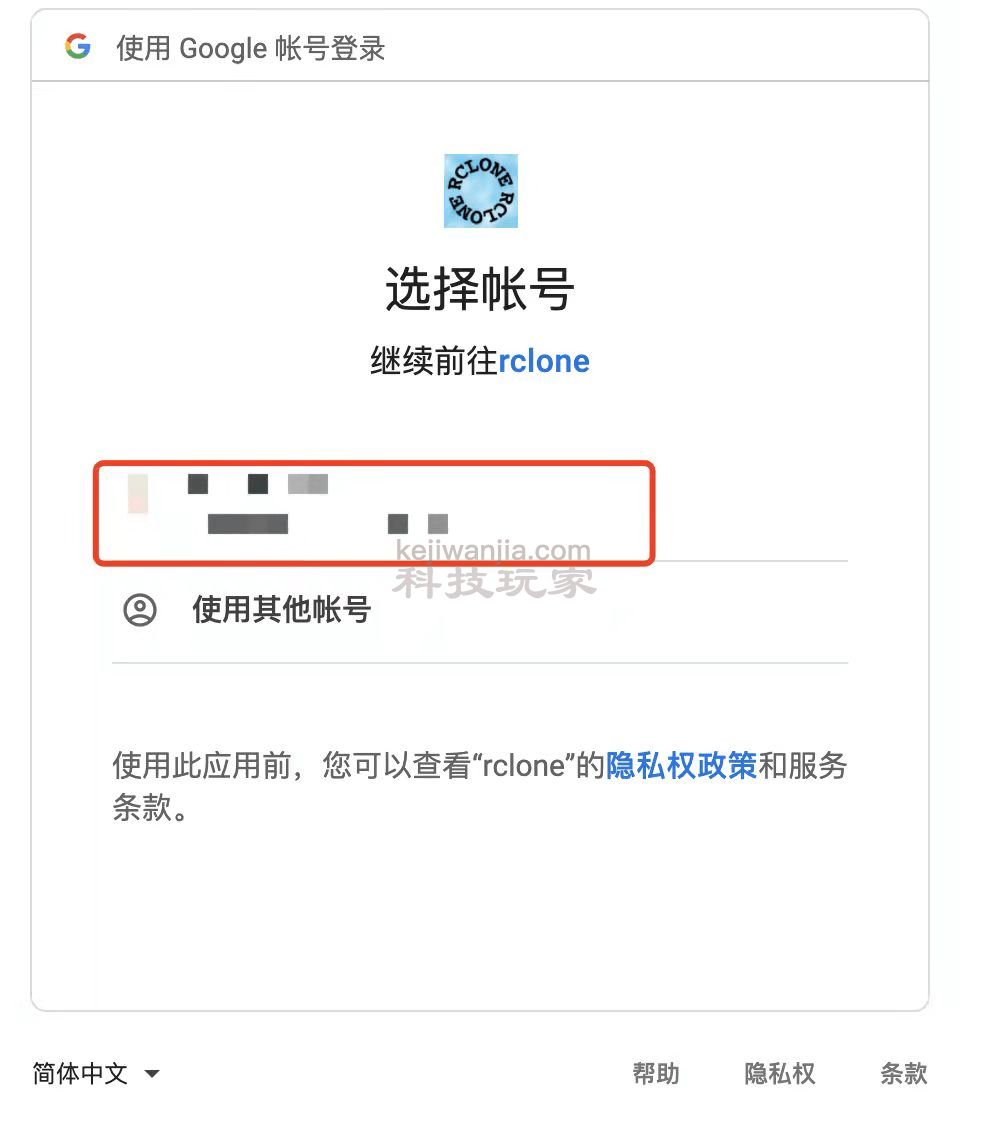
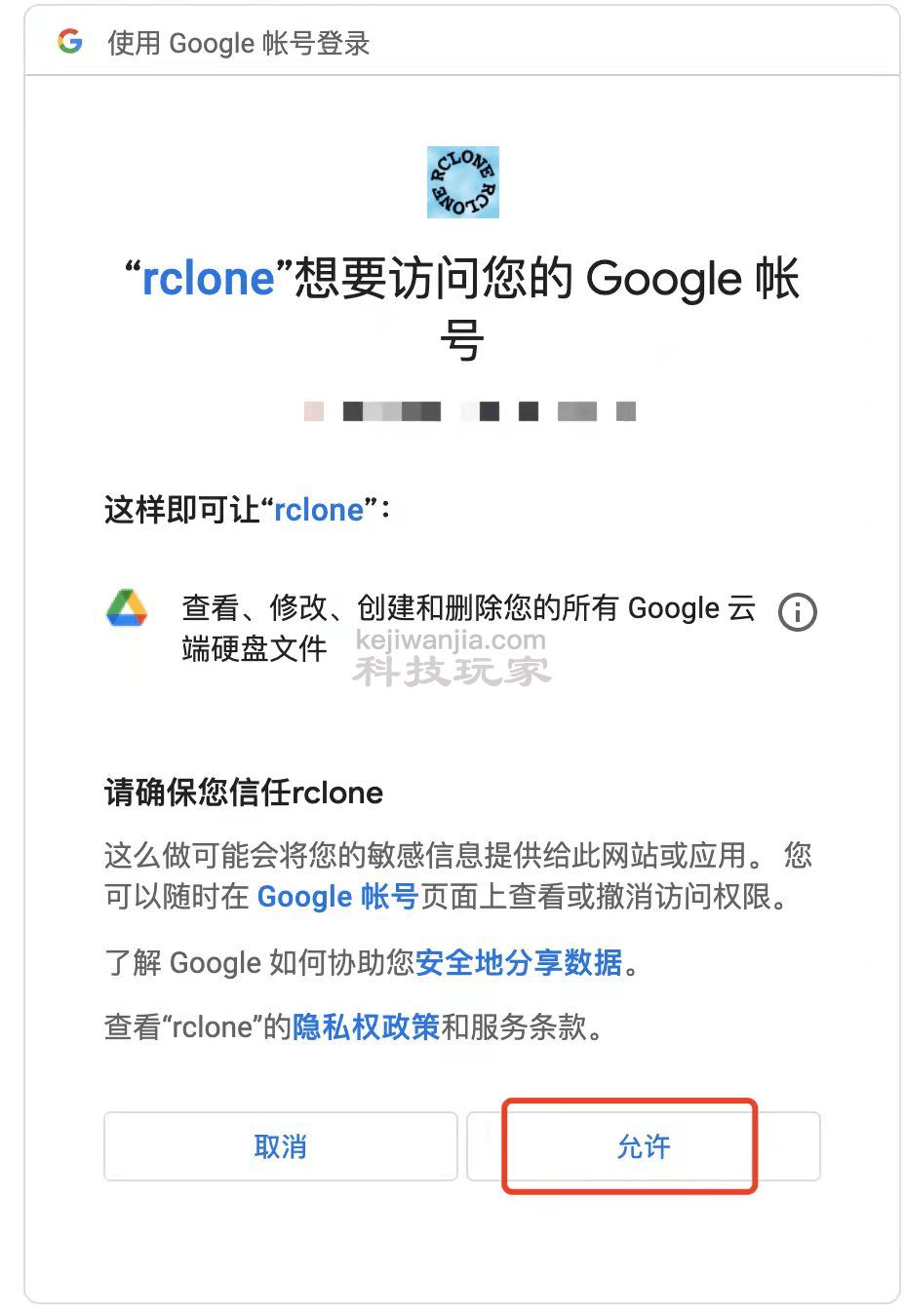
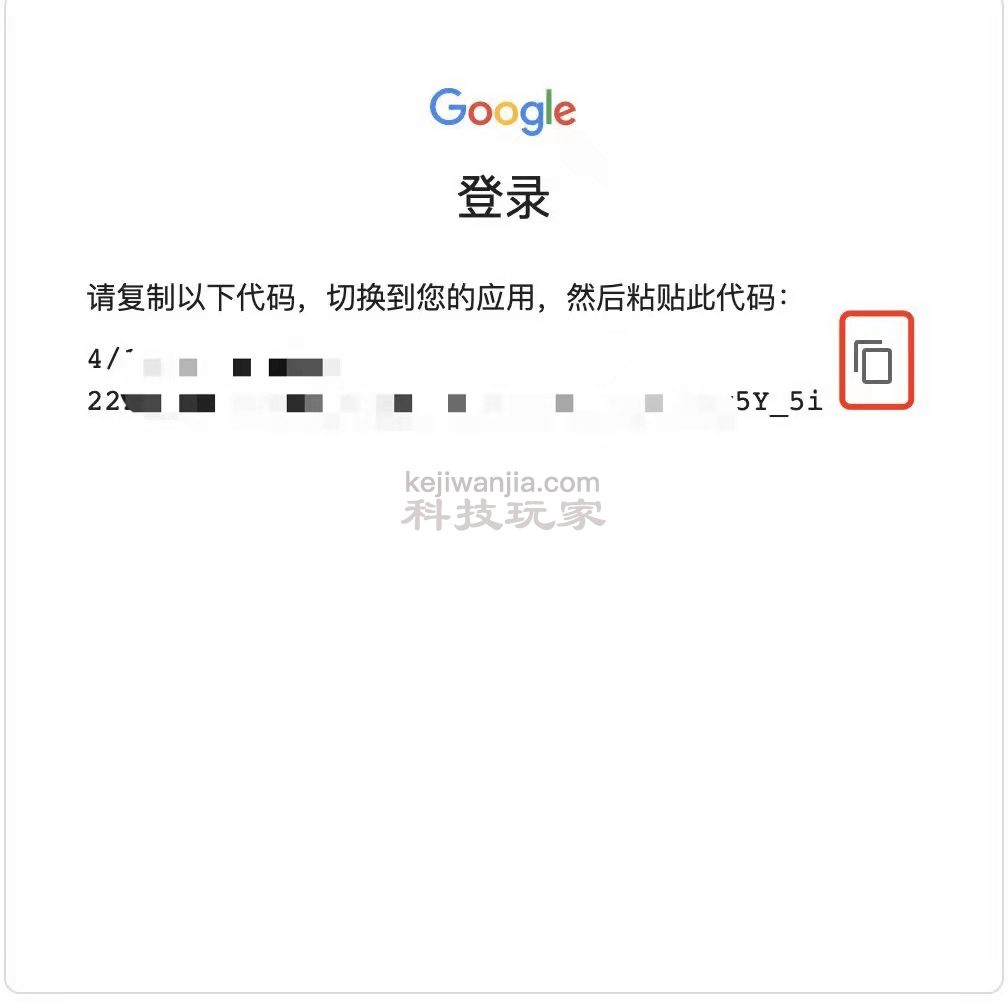
2)最后一些设置
马上就结束了,坚持一下!✊
Configure this as a Shared Drive (Team Drive)?
y) Yes
n) No (default)
y/n> y #输入y,根据自己是否需要配置为团队盘来确定
No Shared Drives found in your account
--------------------
[Gdrive]
type = drive
scope = drive
token = {"access_token":"...XXXXXXX...","token_type":"Bearer","refresh_token":"...XXXXXXX...","expiry":"2022-01-23T23:15:56.27044459+08:00"}
--------------------
y) Yes this is OK (default)
e) Edit this remote
d) Delete this remote
y/e/d> y #输入y,确认配置信息
Current remotes:
Name Type
==== ====
GDrive drive
e) Edit existing remote
n) New remote
d) Delete remote
r) Rename remote
c) Copy remote
s) Set configuration password
q) Quit config
e/n/d/r/c/s/q> q #最后退出配置
二、挂载GoogleDrive
#CentOS
yum install -y fuse
# Debian或者Ubantu
apt-get update && apt-get install -y fuse
挂载命令 rclone mount <网盘名称:网盘路径> <本地路径> [参数] --daemon
网盘名称:这是你在配置的时候自己设置的名称,比如我设置的是GDrive
网盘路径:这是指你的云盘路径,如果留空则代表云盘根目录
本地路径:这是你想挂载的服务器本地路径,比如我直接挂载了FileBrowser根目录
具体的参数配置,见官方文档
#我的挂载示例
rclone mount GDrive:/ /www/wwwroot/kejiwanjia/GDrive --copy-links --allow-other --allow-non-empty --umask 000 --daemon #
#取消挂载
fusermount -qzu <本地路径>
这里我直接挂载了FileBrowser目录,这样可以直接在FileBrowser进行文件操作和分享,真的非常方便,强烈推荐!
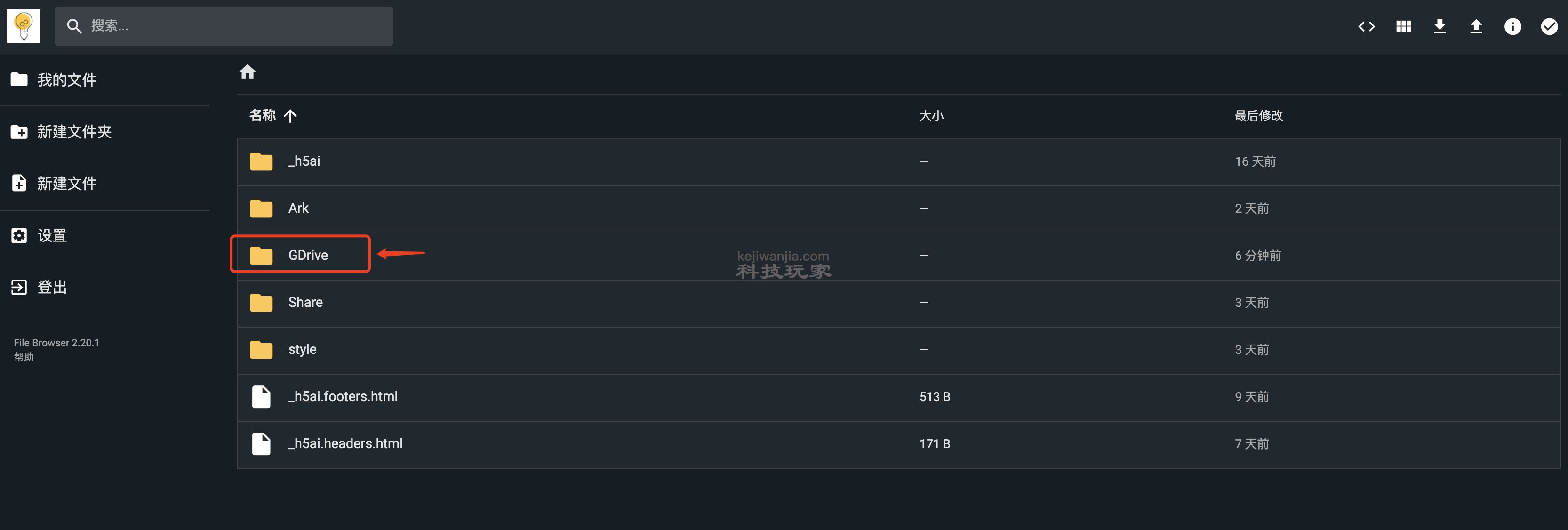
如果你还不会FileBrowser部署,可以参考下面👇进行学习,真的好巴适!如果挂载后FileBrowser没有显示GDrive里面的文件,建议重启容器试试,可能就有啦。
开机自启
挂载最重要的当然是稳,不然动不动掉线岂不是很令人捉急?这里通过systemctl方式来实现。
一、编辑系统服务文件
一整条命令一把梭哈。
cat > /etc/systemd/system/rclone.service <<EOF
[Unit]
Description=Rclone
AssertPathIsDirectory=LocalFolder
After=network-online.target
[Service]
Type=simple
ExecStart=rclone mount GDrive:/ /www/wwwroot/kejiwanjia/GDrive --allow-other --allow-non-empty --vfs-cache-mode full --vfs-cache-max-age 48h --vfs-cache-max-size 5G --vfs-read-chunk-size 128M --vfs-read-chunk-size-limit 1G --buffer-size 128M
ExecStop=fusermount -u LocalFolder
Restart=on-abort
User=root
[Install]
WantedBy=default.target
EOF
二、启用
#开始启动
systemctl start rclone
#设置开机自启
systemctl enable rclone
#其他使用
systemctl restart rclone #重启
systemctl stop rclone #停止
systemctl status rclone #状态
好了,Rclone的基础搭建已经学完了。下一节,我会带来更多高级的玩法哦!
