Qt之样式表QRadioButton详细制作方法

收录于文集
共6篇
前言
制作不易 多多支持
点赞关注 万分感谢
个人经验分享,望各位少走弯路
日后如果有新发现,我会实时更新这个专栏
Q群:732513891
QRadioButton
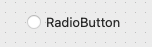
单选按钮是在一个控件内如果存在多个单选按钮,那么在点击一个按钮的同时,会取消其他按钮的点选状态。

代码块
clike
自动换行
复制代码
QRadioButton{
  spacing:12px;
  color: rgb(255, 255, 255);
  background-color: rgba(165, 205, 255,125);
  border:1px outset rgb(255, 255, 255);
  border-radius:8px;
  padding:4px;
}
复制成功
spacing是选择框与文字之间的间距,文字为白色、背景颜色为天蓝色透明度为125、边框为1px的凹陷白色边框、圆角为8px。
代码块
JavaScript
自动换行
复制代码
/*鼠标放在按钮上方*/
QRadioButton:hover {
  background-color: rgba(165, 205, 255,80%);
  border:2px outset rgba(36, 36, 36,0);
}
复制成功
继承QRadioButton开始的样式并且添加,背景色为天蓝色,提升透明度到80%,增加边框为2px的凹陷透明边框。
代码块
JavaScript
自动换行
复制代码
/*鼠标点击按钮*/
QRadioButton:pressed {
  background-color: rgba(165, 205, 255,90%);
  border:4px outset rgba(36, 36, 36,0);
}
复制成功
继承QRadioButton开始的样式并且添加,背景颜色透明度提升至90%,增加4px透明边框。


代码块
JavaScript
自动换行
复制代码
QRadioButton{
  spacing:12px;
  color: rgb(255, 255, 255);
  background-color: rgba(165, 205, 255,125);
  border:1px outset rgb(255, 255, 255);
  border-radius:8px;
  padding:4px;
  text-align: center center; }
QRadioButton::indicator {
  padding-left:12px;
  width: 32px;
  height: 32px;
  left: 0px;
  right: 0px;
  top: 0px;
  bottom:0px; image: url(:/svg/img/svg/对号1.png); }
QRadioButton::indicator:hover { image: url(:/svg/img/svg/对号1 (2).png); } QRadioButton::indicator:pressed { image: url(:/svg/img/svg/对号1 (1).png); }
复制成功
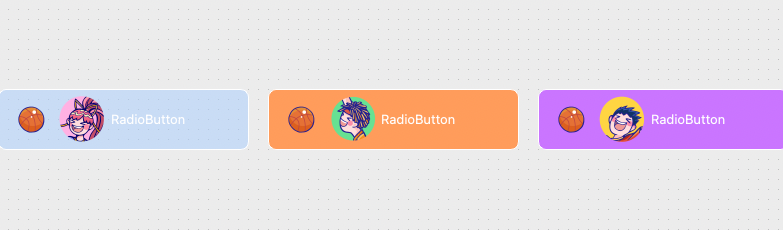
带有icon、改变选择框样式、并且添加动作和间距。
不同状态下。可以选择不同样式的状态。
同样的可以选择自己喜欢的字体样式。
代码块
JavaScript
自动换行
复制代码
/*选择框未选中状态*/
QRadioButton::indicator:unchecked {
  image: url(./image1.png);
}
/*选择框鼠标悬浮在未选中状态*/
QRadioButton::indicator:unchecked:hover{
  image: url(./image2.png);
}
/*选择框鼠标点击未选中状态*/
QRadioButton::indicator:unchecked:pressed {
  image: url(./image3.png);
}
/*选择框选中状态*/
QRadioButton::indicator:checked {
  image: url(./image4.png);
}
/*选择框鼠标悬浮在选中状态*/
QRadioButton::indicator:checked:hover{
  image: url(./image5.png);
}
/*选择框鼠标点击在选中状态*/
QRadioButton::indicator:checked:pressed {
  image: url(./image6.png);
  font-family: "Microsoft YaHei";
  font-size: 14px; font-style: italic;
  font-weight: bold;
  font: bold italic 18px "Microsoft YaHei";
}
复制成功
那么Radiobutton就大概涵盖这些,如果有遗漏请大家私信我,后续如果有发现新的玩法,会及时更新文章,希望大家多多关注点赞支持我。后续我会把其他控件的相关用法也写出来。如果有深入学习和交流可以加群,群里有很多小伙伴可以一起讨论问题。
PyQt5学习爱好群主群:732513891(已满)
PyQt5学习爱好群二群:937759168(已满)
PyQt5学习爱好群三群:757679170
谢谢观看
cv19238745
分享至
投诉或建议
