

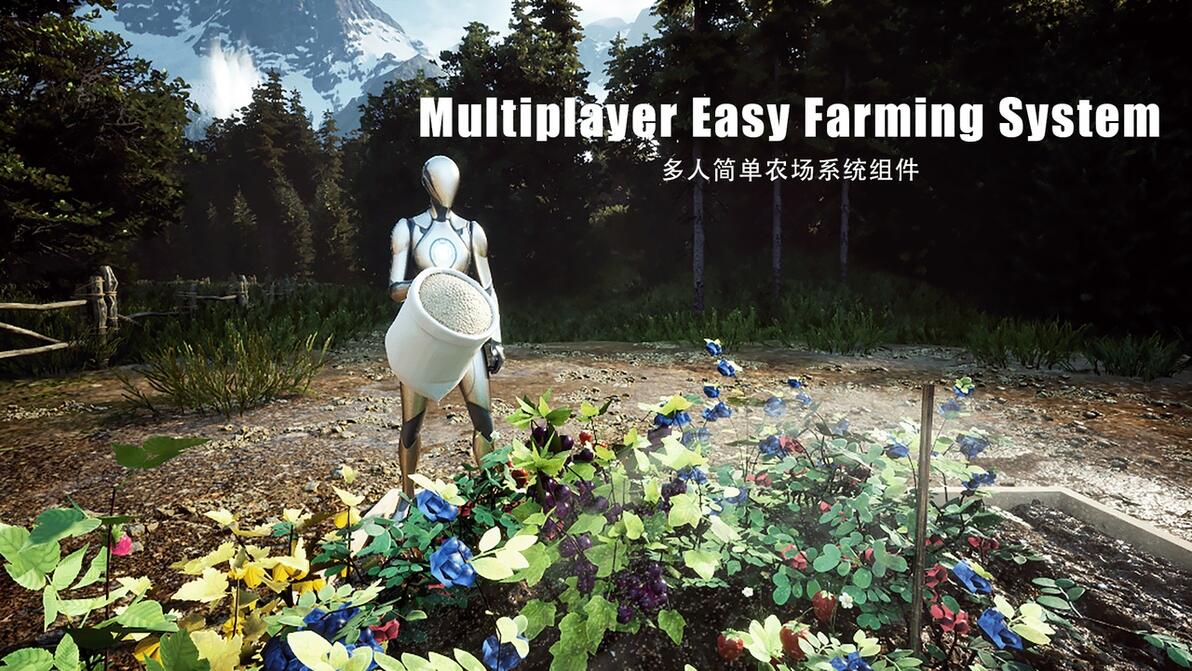
如何将 [AC] Multiplayer Easy Farming System 接入自己的UE(5.5+)项目中?
How to integrate the [AC] Multiplayer Easy Farming System into your own Unreal Engine (5.5+) project?
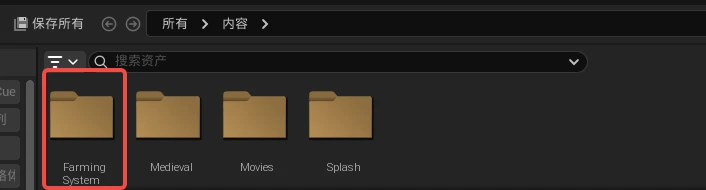
1.确认自己的项目中已经下载FarmingSystem文件夹和它的内容,如图所示。
1. Make sure that the FarmingSystem folder and all of its contents have already been downloaded into your project, as shown in the image below.
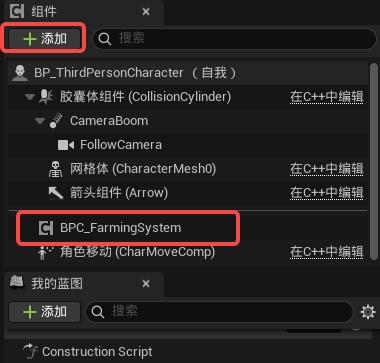
2.打开自己的角色蓝图,在组件窗口中,添加BPC_FarmingSystem组件。
2. Open your character Blueprint and, in the Components panel, add the BPC_FarmingSystem component.
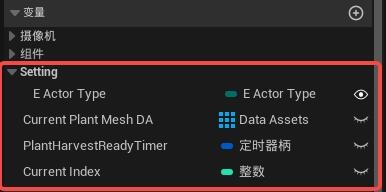
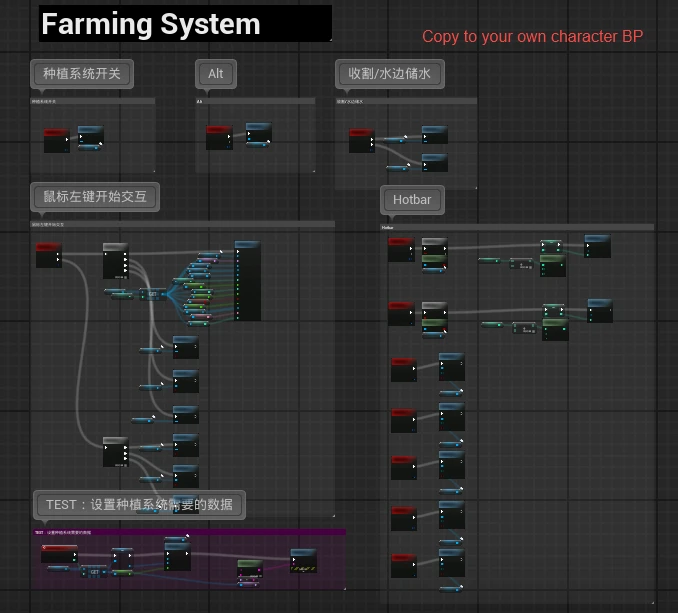
打开FarmingSystem文件中预设的角色,将所有有关FarmingSystem的变量和蓝图逻辑复制到自己的角色蓝图中。(需要自行查看按键触发是否有重复)
Open the preset character provided in the FarmingSystem folder and copy all variables and Blueprint logic related to the FarmingSystem into your own character Blueprint.
(Be sure to check for any overlapping or duplicate input bindings.)
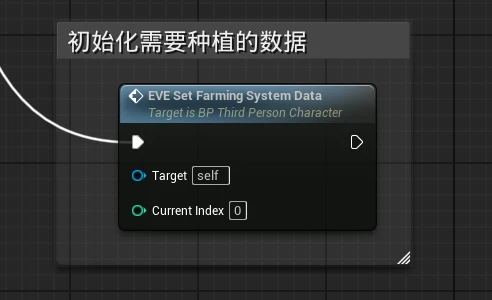
检查角色蓝图Beginplay事件中的蓝图,需要调用EVE_SetFarmingSystemData事件作为初始化数据(可参考beginplay事件的蓝图逻辑,它只在本地被运行)
Check the Blueprint logic in the character Blueprint’s BeginPlay event and make sure to call the EVE_SetFarmingSystemData event to initialize the data.
(You can refer to the existing BeginPlay Blueprint logic—this event is executed locally only.)
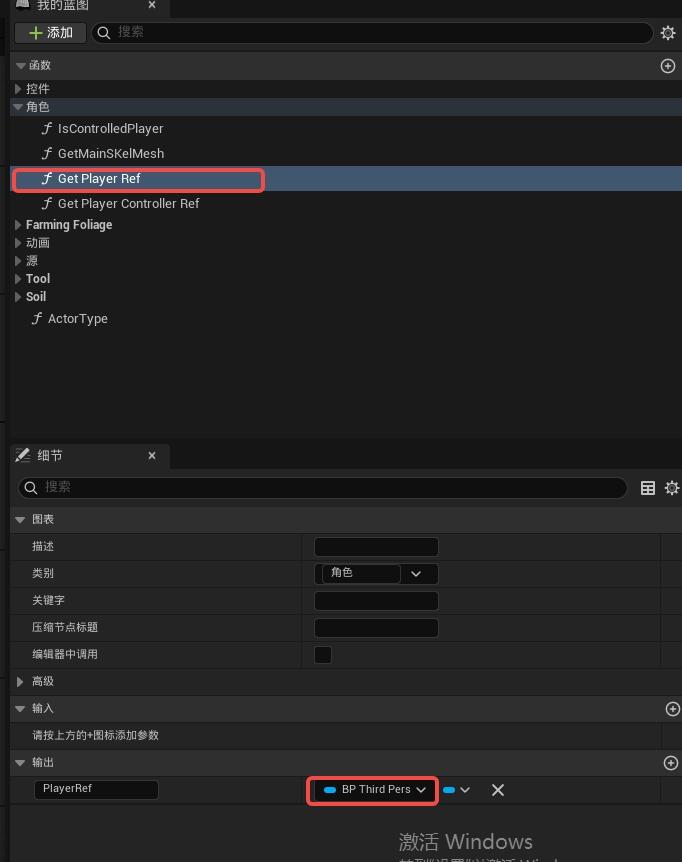
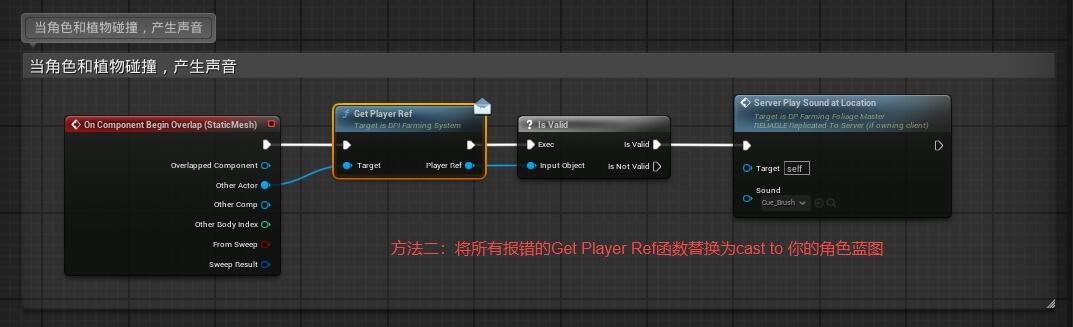
3.打开蓝图接口(BPI_FarmingSystem),找到Get Player Ref 这个函数,将角色变量类型改为你自己的角色蓝图,先保存再编译。(接下来,有用到Get Player Ref接口函数的蓝图都会报错,找到他们,重新进行设置或者简单暴力地改成cast to 你的角色蓝图名)。
3. Open the Blueprint Interface (BPI_FarmingSystem), locate the Get Player Ref function, and change the character variable type to your own character Blueprint. Save first, then compile.
(After this, any Blueprints that use the Get Player Ref interface function will report errors. Locate those Blueprints and either reconfigure them properly or, as a quick workaround, replace the logic with a direct Cast To <YourCharacterBlueprintName>.)
4.角色接入蓝图接口:打开角色蓝图的类设置,在右侧接口一栏中接入BPI_FarmingSystem。
4. Implement the Blueprint Interface on your character:
Open your character Blueprint’s Class Settings, and in the Interfaces section on the right, add BPI_FarmingSystem.
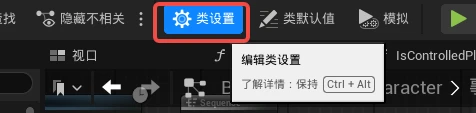
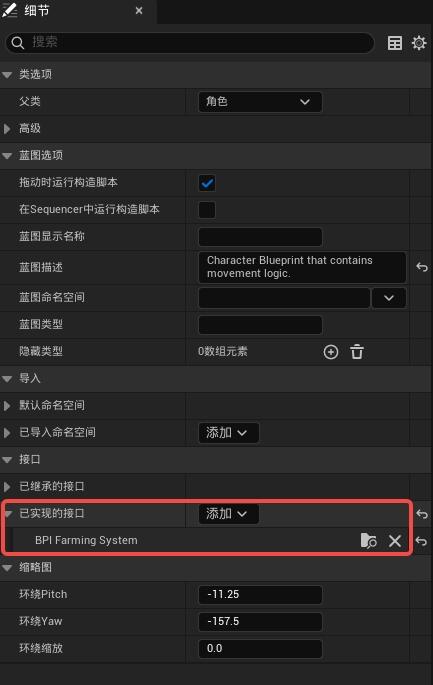
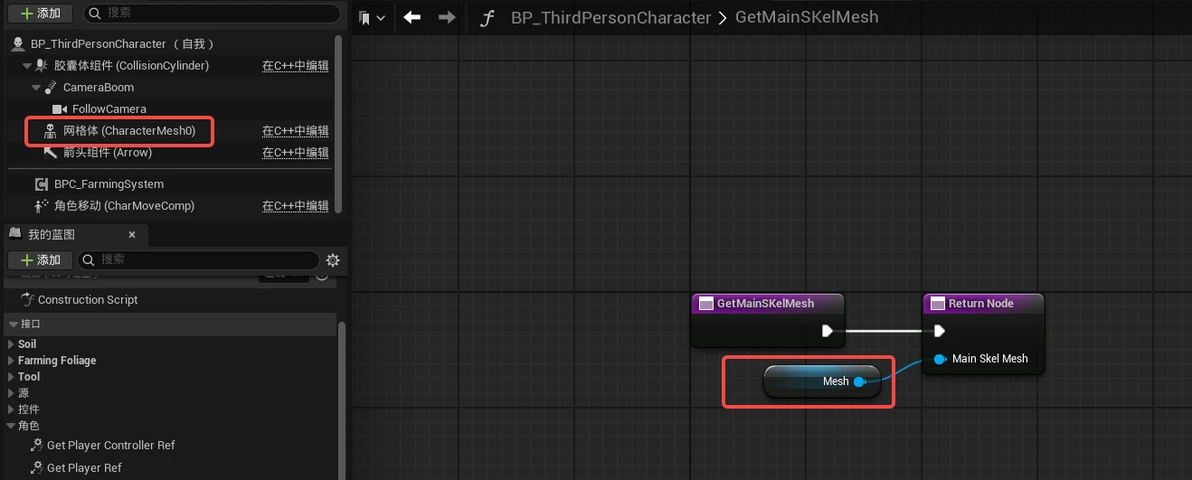
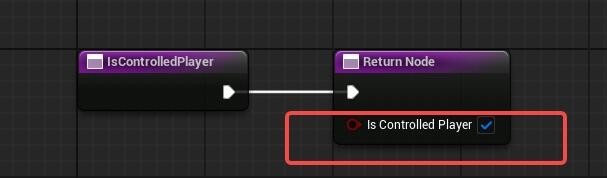
在“我的蓝图”窗口中,展开接口,查看接口中的函数。打开“角色”组的函数,依次将角色的信息接入函数,如图所示。
In the “My Blueprint” panel, expand the Interfaces section to view the interface functions.
Open the functions under the “Character” group and connect your character data to each function accordingly, as shown in the image.
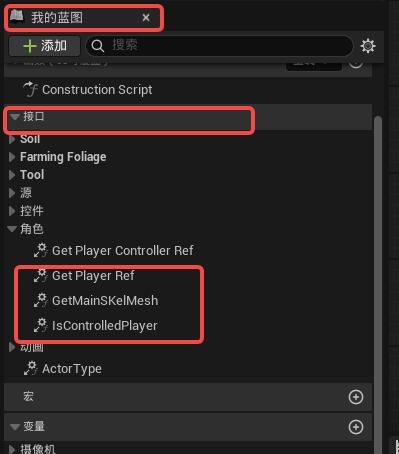
^^^After the update, "Get Player Ref" and "Get Player Controller Ref" have been removed here, so you don't need to worry about this step.
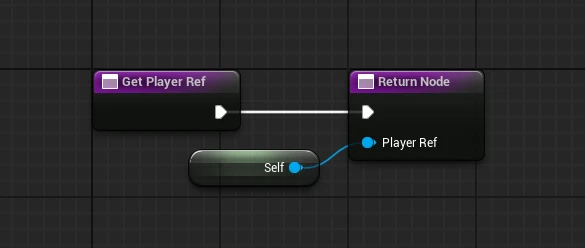
^^^After the update, you don't need to worry about this step.
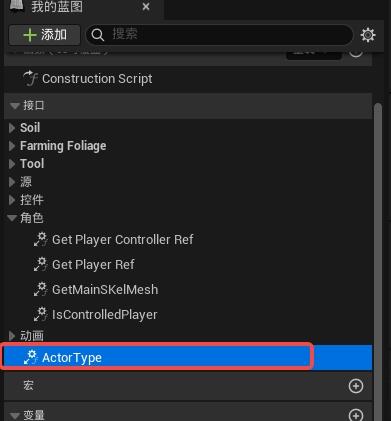
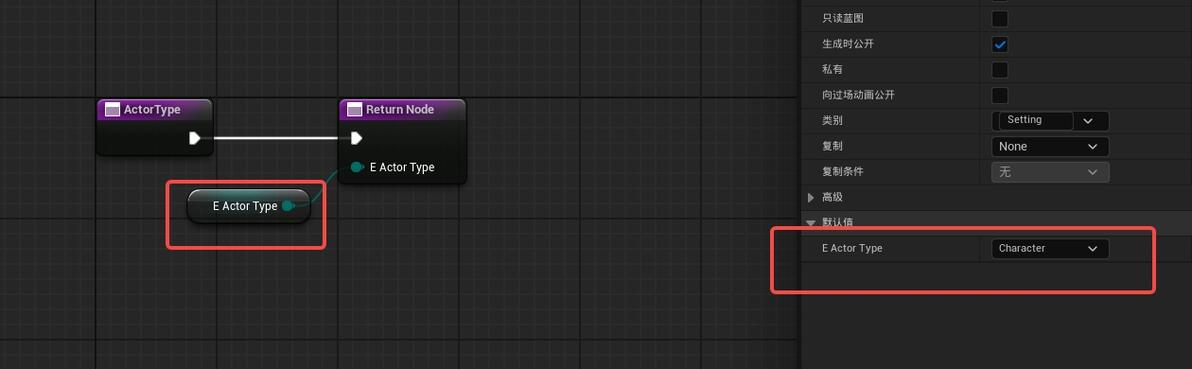
打开ActorType函数,将枚举变量接入,值设置为Character,如图所示。
Open the ActorType function, connect the enum variable, and set its value to Character, as shown in the image.
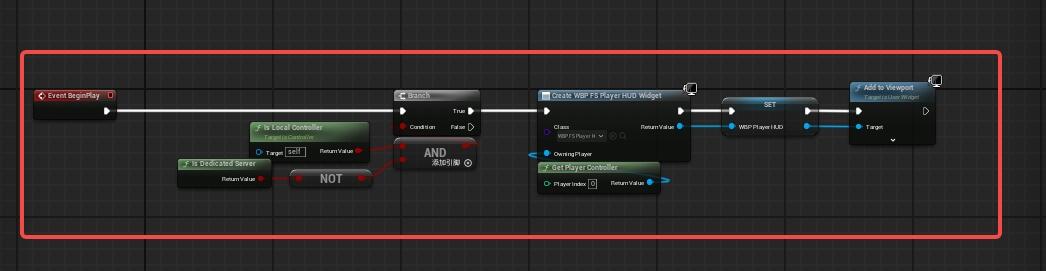
5.打开玩家控制器PC_Player,将Beginplay事件中的蓝图结合到你自己的玩家控制器中。目的是加入FarmingSystem UI,将他先是在你玩家的屏幕上。
5. Open your player controller (PC_Player) and integrate the Blueprint logic from the BeginPlay event into your own player controller.
The goal is to add the FarmingSystem UI so that it initially appears on your player’s screen.
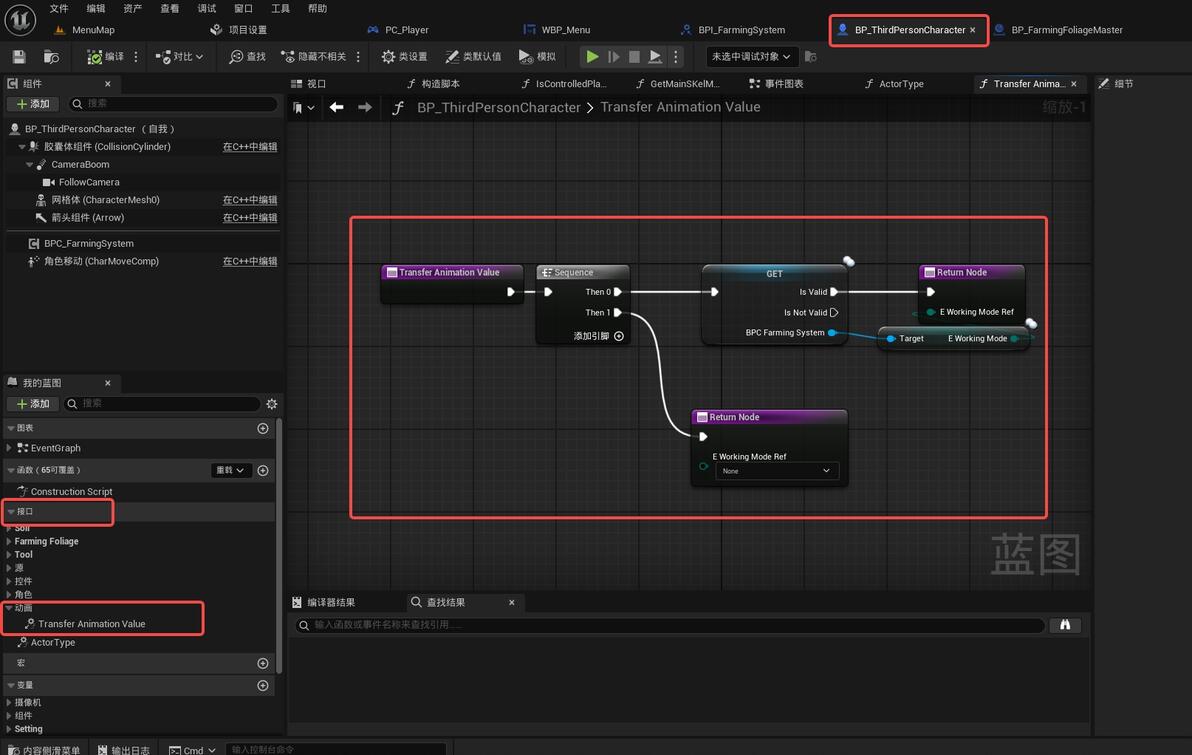
6.更新补充:在自己的角色蓝图-接口-动画-Transfer Animation Value 函数中,将组件中自带的变量“E_WorkingMode”按照如图所示接到输出节点。 6. Update / Additional Step:
Within your Character Blueprint → Interfaces → Animation Function Group → 'Transfer Animation Value' function, connect the component’s built-in variable E_WorkingMode to the output node as illustrated.
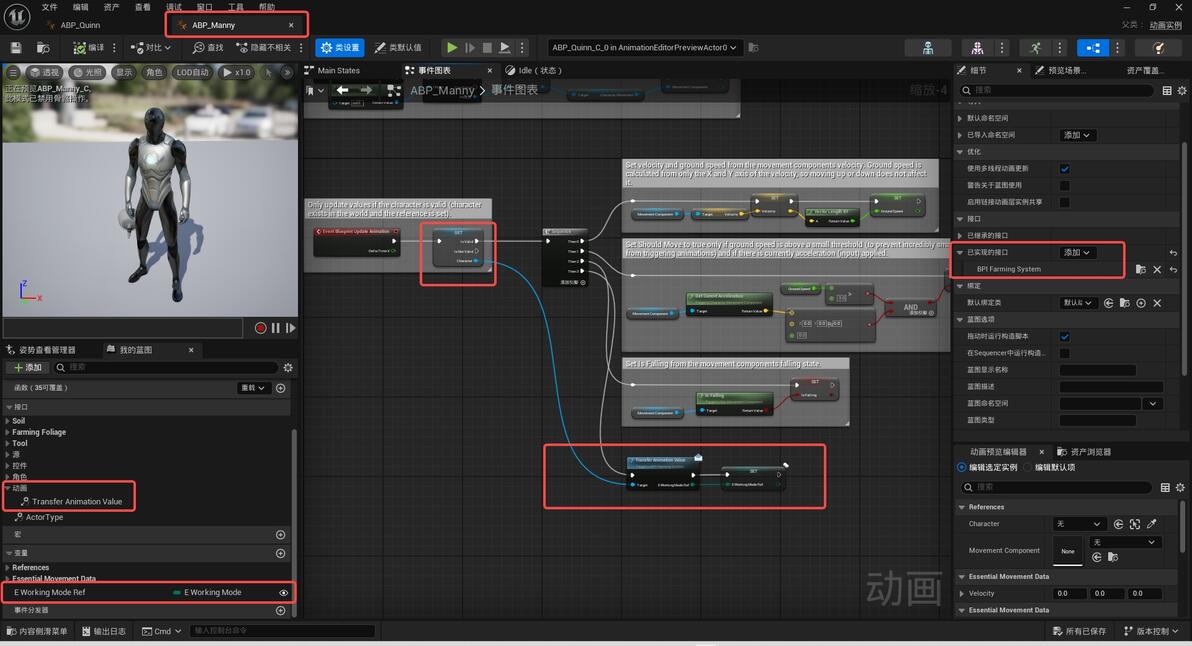
角色的动画蓝图方面:也接入BPI_FarmingSystem,新建变量“E Working Mode Ref”,调用接口中的函数"Transfer Animation Value "并按图连接。
Also implement the BPI_FarmingSystem interface in your character Animation Blueprint.
Create a new variable called E_WorkingMode_Ref, call the interface function Transfer Animation Value, and connect it as shown in the image.
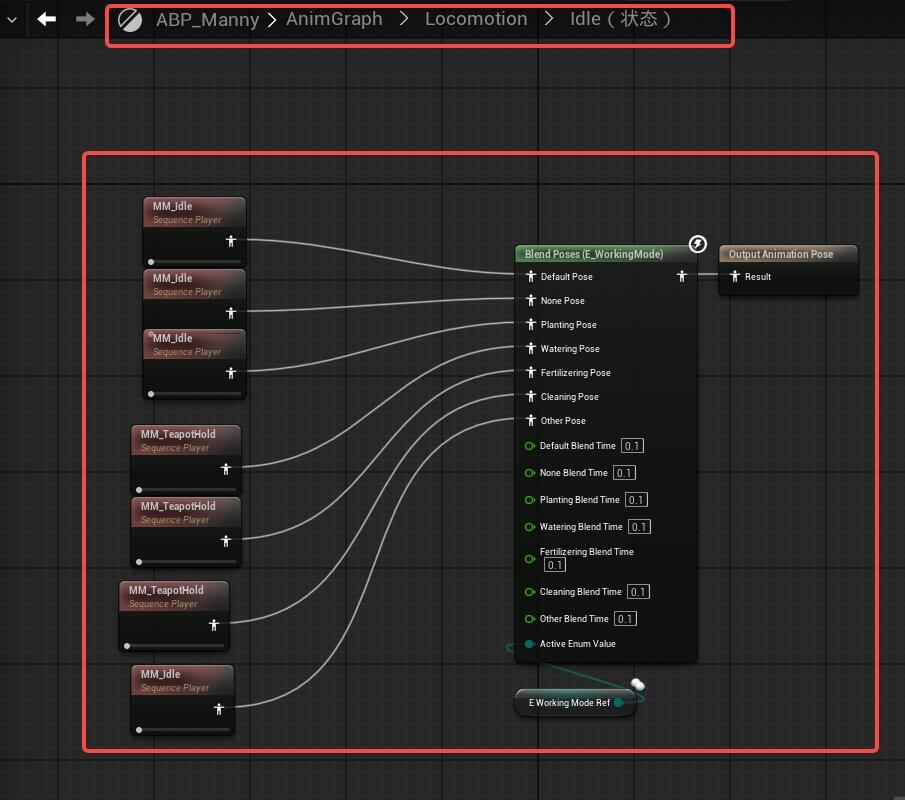
变量控制角色切换道具时的动画,这个按照自己的游戏风格设置动画即可。
This variable controls the animation when the character switches tools.
You can set the animations according to your own game style.
教程先更新到这里,感谢观看。
The tutorial is updated up to this point. Thank you for following along.
Epic Fab商城的商品链接(Product link on the Epic Fab Marketplace):https://www.fab.com/zh-cn/listings/c7b73d71-b7f4-4e27-b444-e1aef843dfff
